Understanding the Dashboard
FW Real Estate tutorial for WordPress
Understanding the Dashboard
When FW Real Estate is installed, a FW Real Estate menu appears in the Joomla administrator sidebar. This menu gives you access to every section of the component — from managing property listings to configuring global settings.
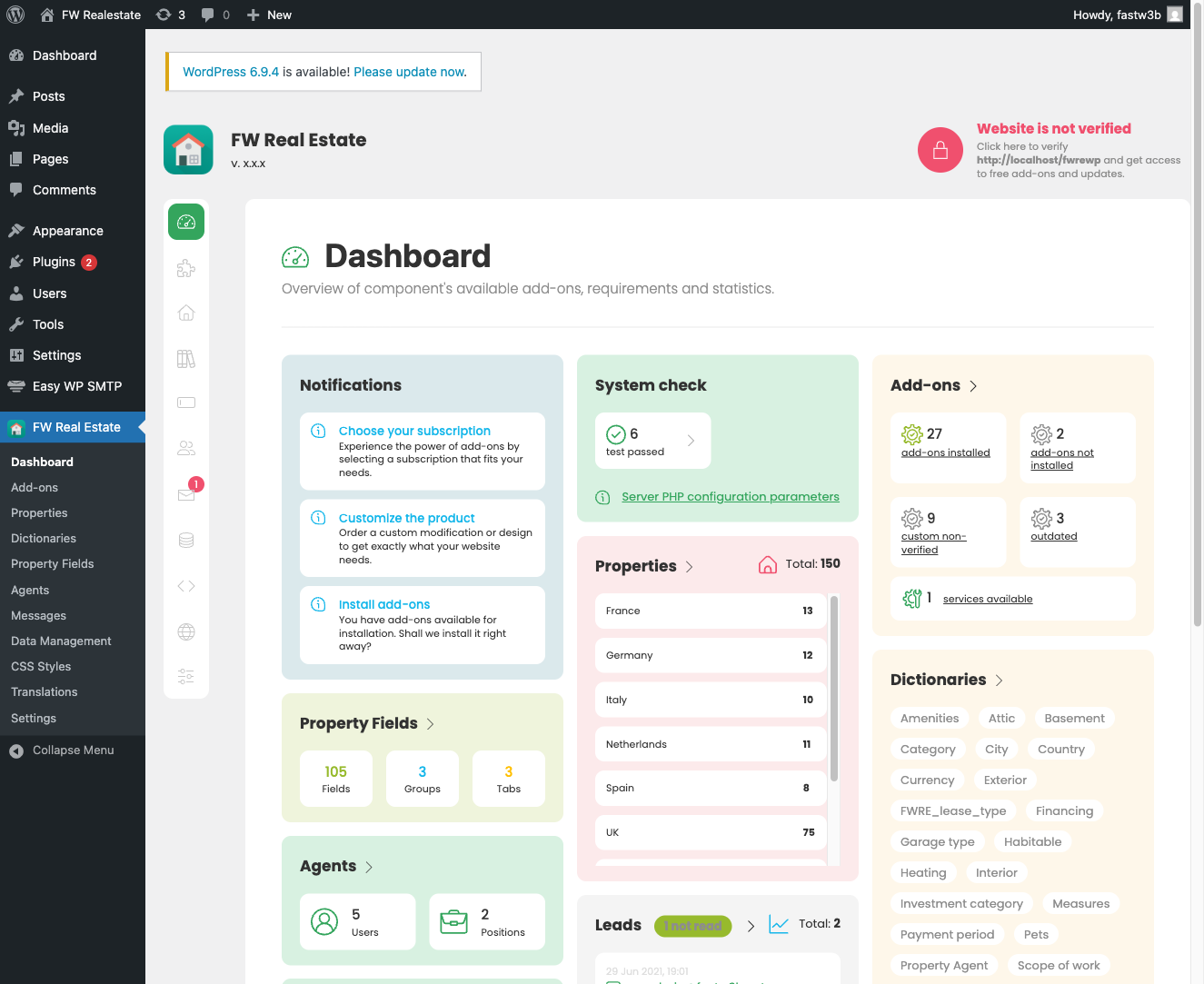
Admin Panel Sections
- Properties — Add, edit, delete, and publish or unpublish property listings. From here you can assign agents, upload gallery images, and set a property's location on the map.
- Agents — Manage agent profiles. Agents can be assigned to properties and displayed on frontend pages.
- Dictionaries — Control the dropdown values used across the component: property types, categories, statuses, amenities, locations (countries, regions, cities), measurement units, and more. Set these up before adding your first property so the form dropdowns are populated correctly.
- Fields — Create and manage custom fields for property forms. Supported field types include text, number, select, and checkbox.
- Data — Import and export property data via CSV, and install sample data to help you get started.
- Messages — View property inquiry messages submitted through the contact form. Requires the Contact Form plugin to be active.
- Settings — Global component configuration covering localization, display options, image handling, and plugin-specific options.
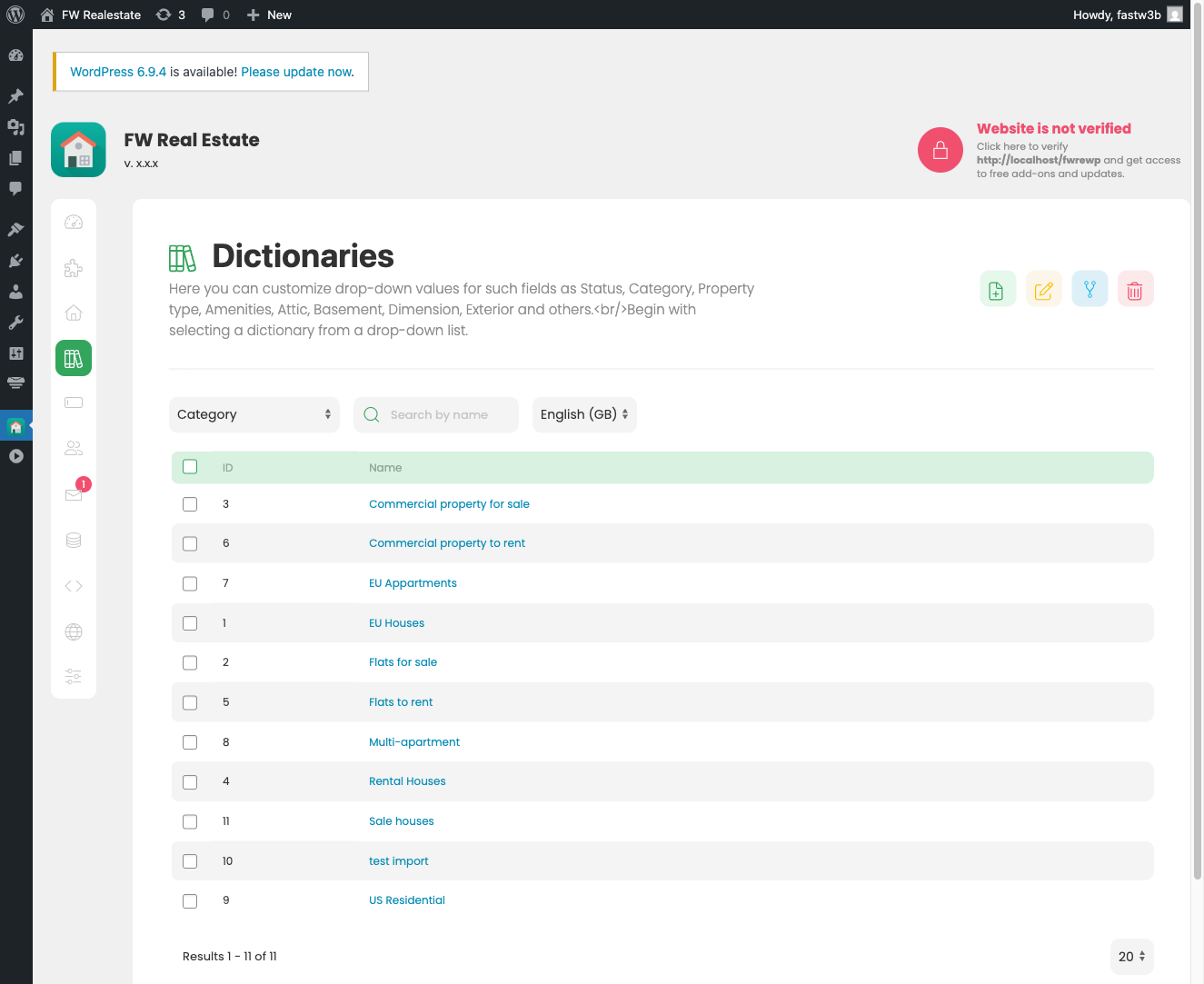
Settings Overview
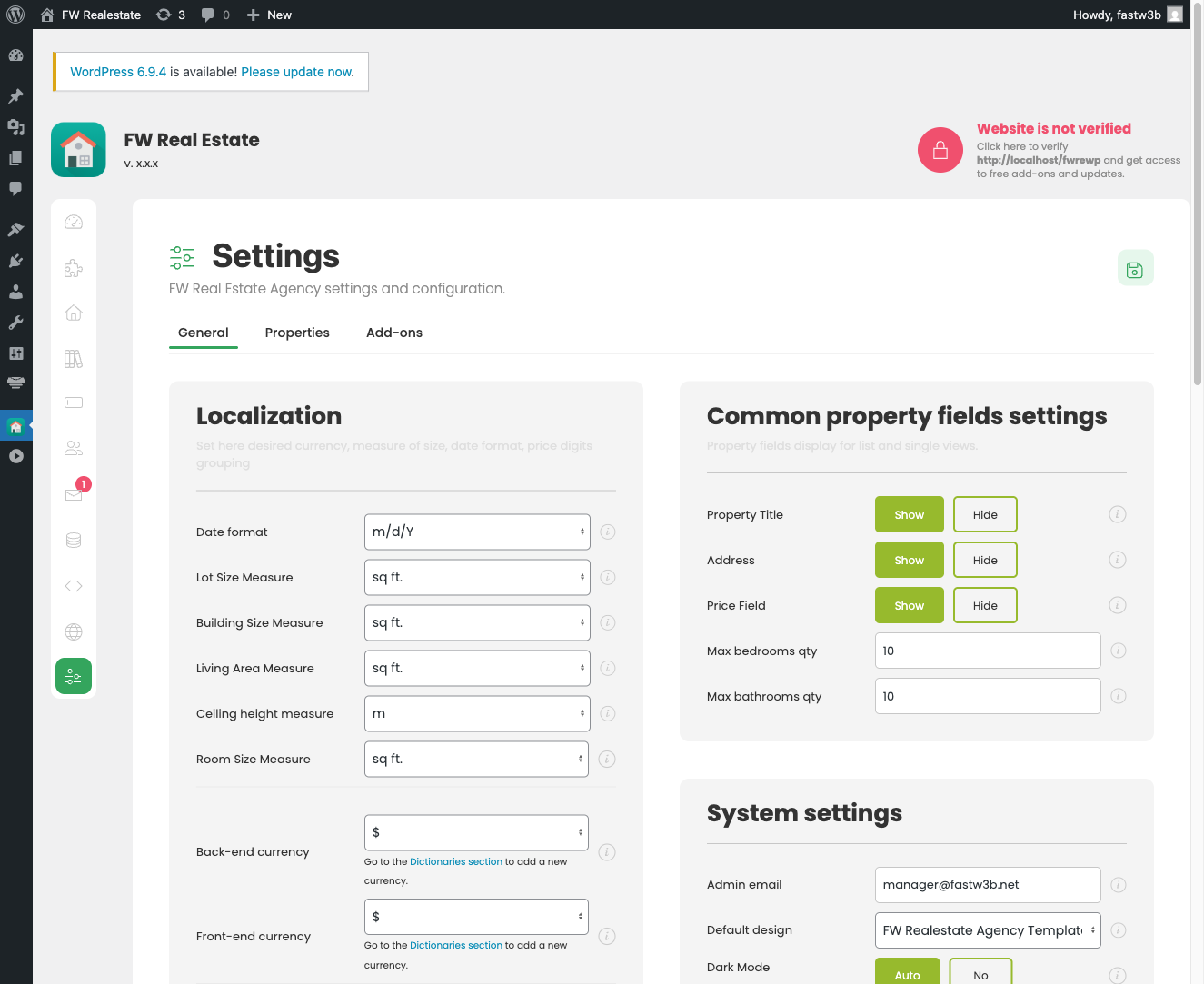
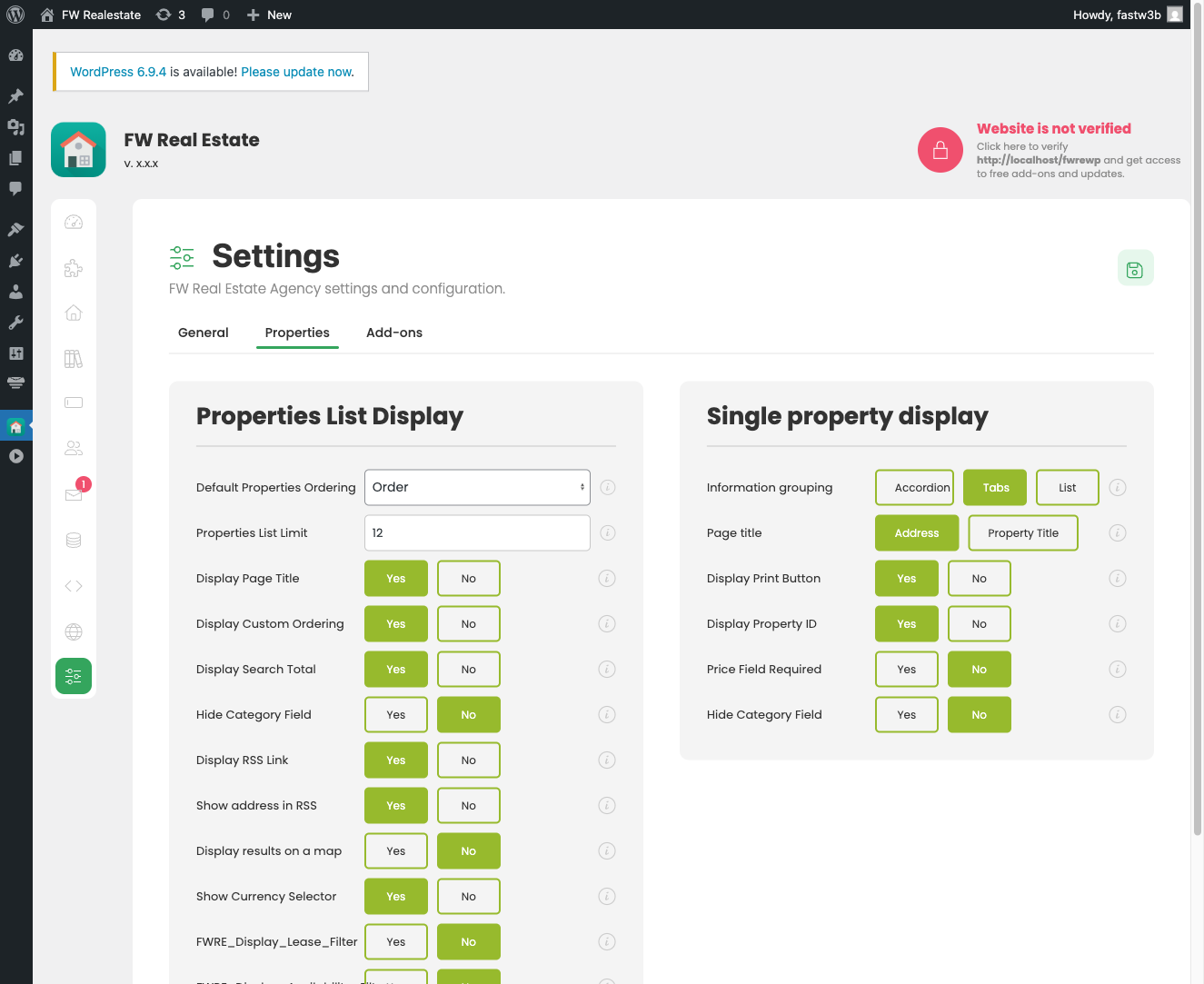
The Settings page is divided into three tabs: General, Properties, and Addons.
- General — Configure localization (date format, currency, measurement units), common display options (title, address, price visibility), system settings (admin email, default theme), and image size rules.
- Properties — Control how property listings and individual property pages behave, including sort order, pagination, and detail page layout.
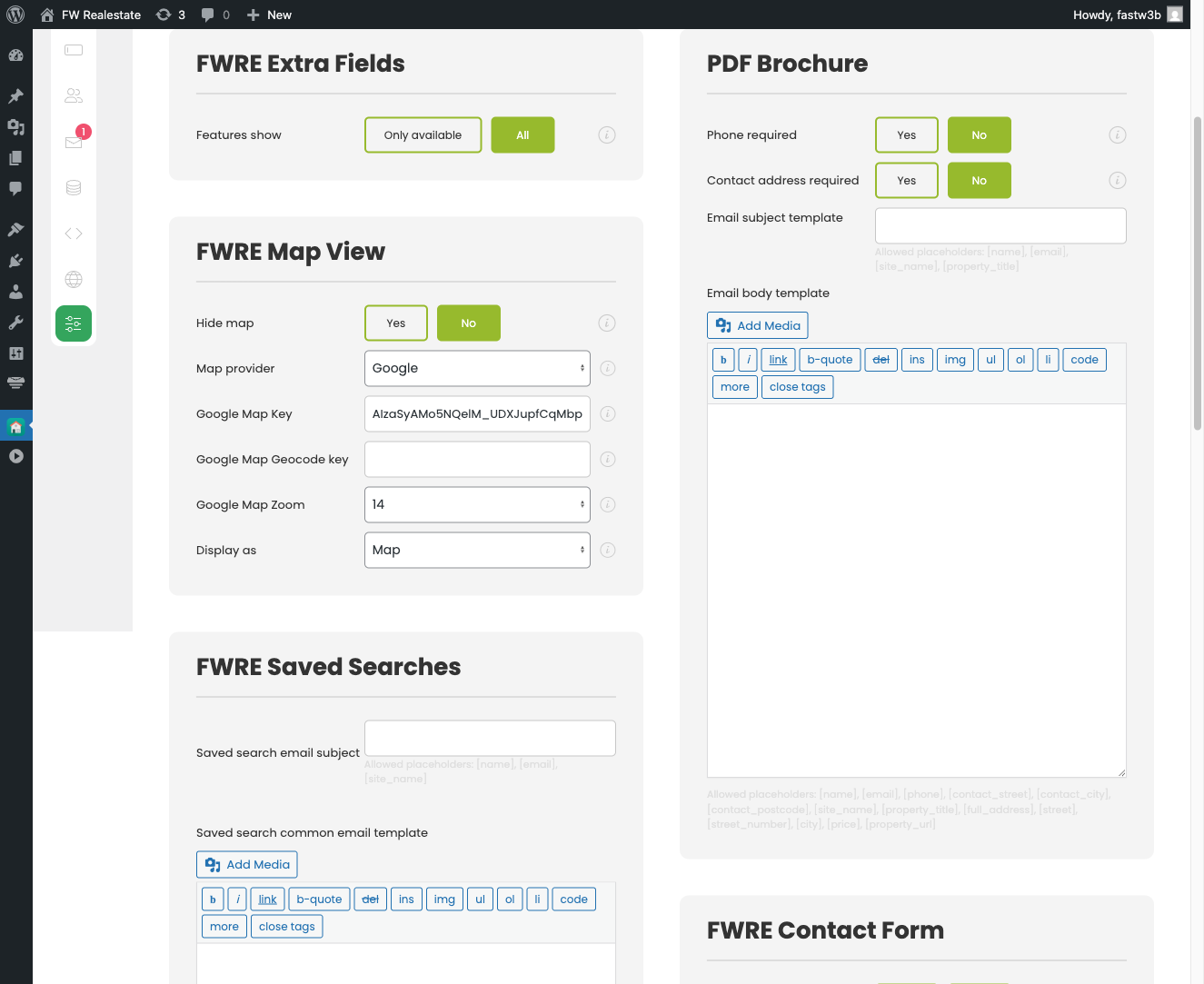
- Addons — This tab is populated by installed plugins. Each active plugin that has configurable options adds its own settings card here. If no plugins are active, this tab appears empty.
A Note on Setup Order
Before adding properties, configure your Dictionaries first. Property form dropdowns — types, statuses, locations, and measurement units — are all drawn from dictionary entries. A property that is missing required fields such as title, status, or type will not appear on the frontend even if it is published.
Was this article helpful?

