Map Not Showing
Map Not Showing
If the map is missing or broken on property pages or the listing view, work through the common causes below.
Map View Plugin Not Enabled
The map functionality requires the FW Real Estate - Map View plugin to be active. Go to Joomla → Extensions → Plugins, search for Map View, and confirm the plugin is enabled. Without it, no map settings or map output will appear on your site.
Google Maps API Key Not Entered
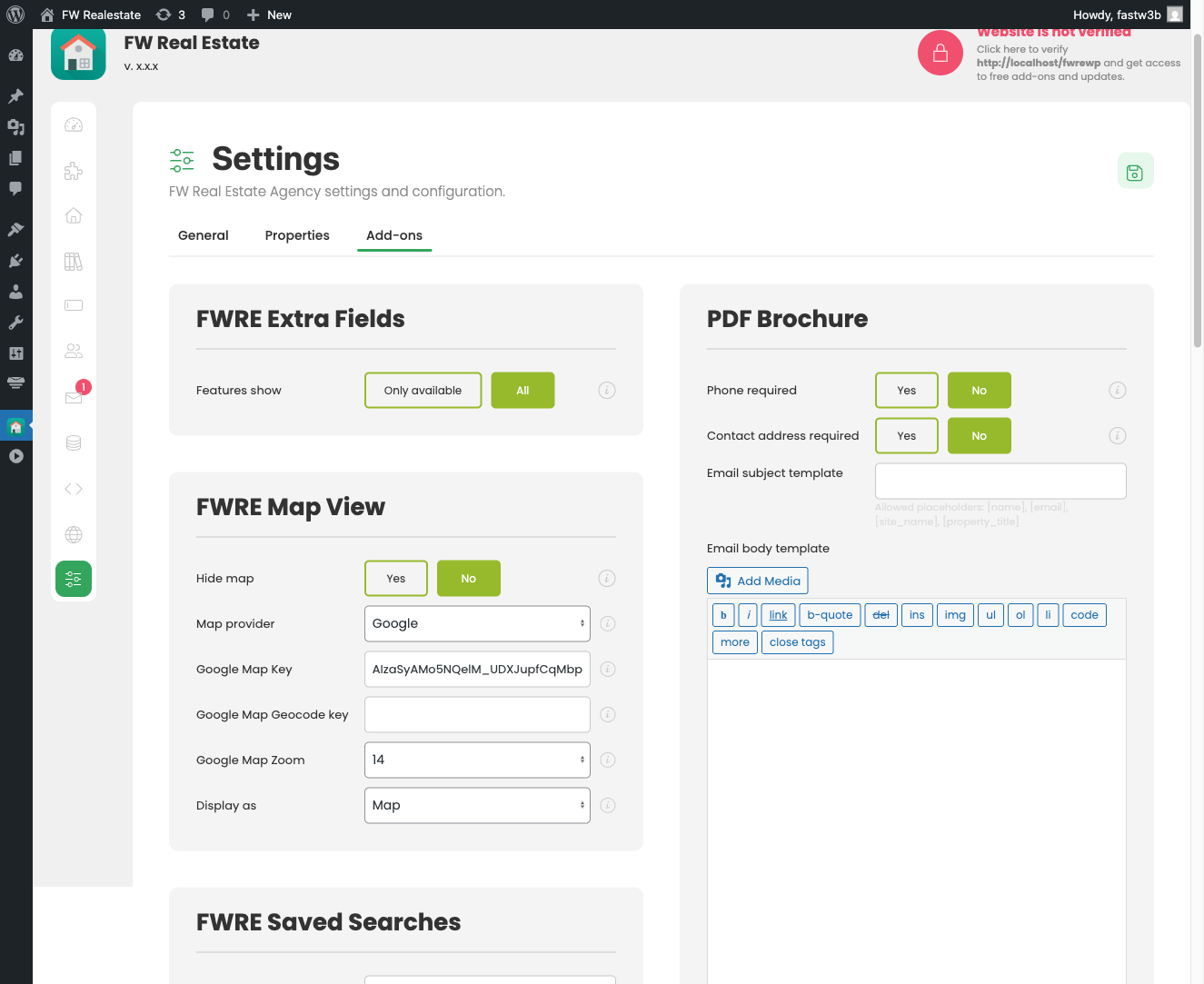
Open FW Real Estate → Settings → General tab and locate the Map View card. If the Google Maps API key field is empty, the map cannot load. Enter a valid key before testing again.
Wrong API Key Restriction Type
Google API keys must have the correct restriction type or requests will be blocked. Use two separate keys:
- Google Maps API key (browser map display) — set the restriction to HTTP referrers (websites) and add your site URL. Also ensure the Maps JavaScript API and Geocoding API are enabled on this key.
- Google Geocoding API key (server-side geocoding when saving a property) — set the restriction to IP address. An HTTP referrer restriction will block server-side requests, so geocoding will silently fail even if the map itself displays correctly. Enable the Geocoding API on this key.
Using the same key for both purposes will not work. If addresses are not converting to coordinates automatically when you save a property, the Geocoding key restriction is the most likely cause.
Property Coordinates Not Set
Properties with no coordinates set (latitude and longitude both at zero) do not appear as markers on the map view. Open the property in edit mode and scroll to the Map section. Set the location by typing the address to geocode it automatically, dragging the marker, or entering latitude and longitude directly.

After saving, the property will appear as a marker on the listing map and the single property page map.


Map Globally Hidden
Check that Hide map is set to No in the Map View card under Settings → General tab. This setting overrides all per-property coordinate data — if it is enabled, no maps will display anywhere on the site regardless of other configuration.
API Quota Exceeded
If the map loads briefly and then shows an error overlay, or stops working partway through the day, your Google API quota may be exhausted. Check the Google Cloud Console for quota usage and errors on both keys. Upgrading your billing plan or requesting a quota increase in the Cloud Console will resolve this.

