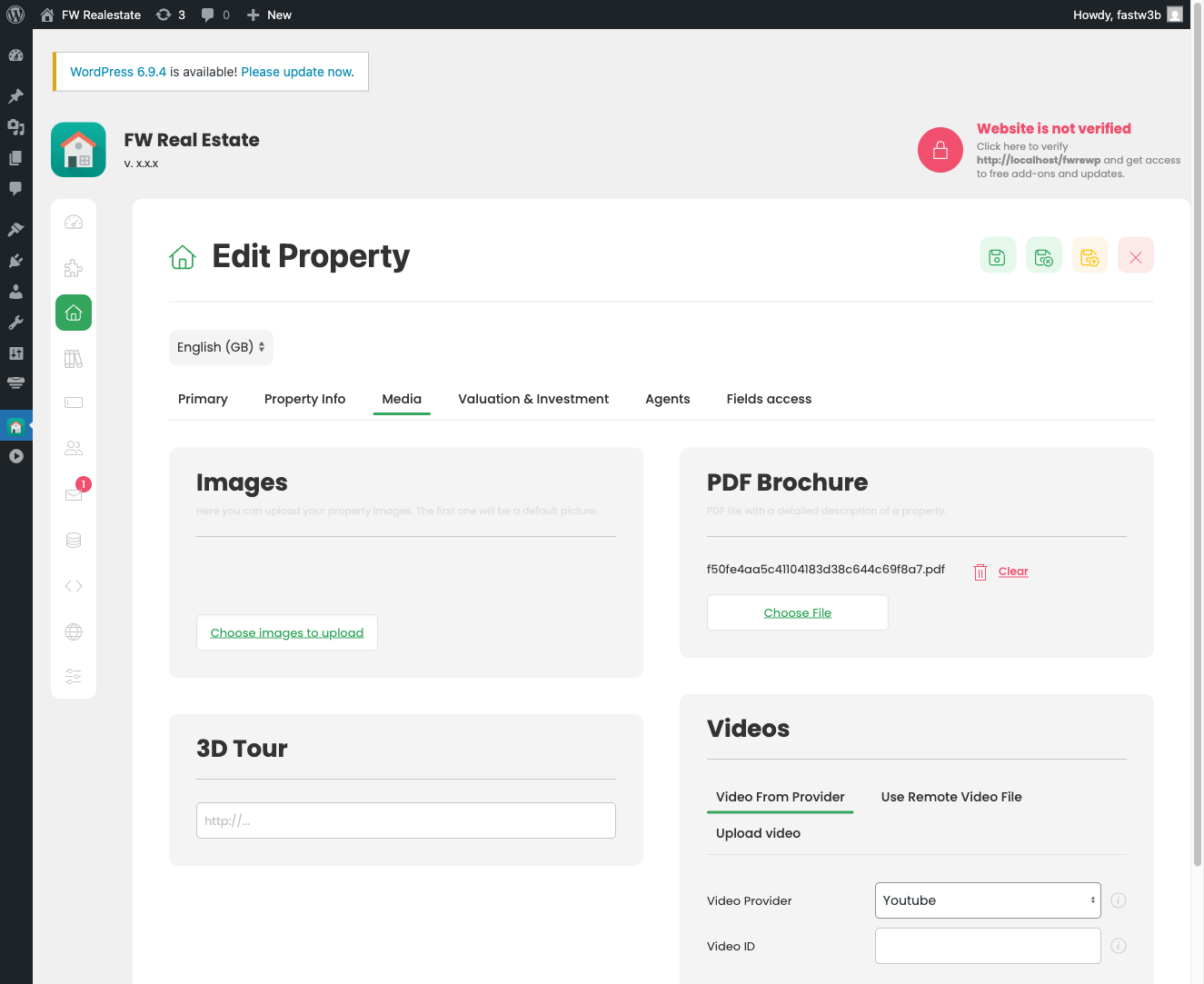
Image Upload Problems
Image Upload Problems
If images fail to upload to property galleries in FW Real Estate, the cause is almost always a server-side PHP or filesystem configuration issue — not the component itself. Work through the checks below to identify and resolve the problem.
PHP File Size Limits
PHP enforces two separate size limits that both affect uploads. If either is too low, uploads will silently fail or return an error.
- upload_max_filesize — the maximum size of a single uploaded file. Set this to at least 32M.
- post_max_size — the maximum size of the entire HTTP POST request, which includes all files and form data. This must be larger than
upload_max_filesize. Set this to at least 64M.
Update these values in your php.ini file, or via a .htaccess or php.ini override in your Joomla root if your host allows it:
upload_max_filesize = 32M
post_max_size = 64M
After making changes, restart your web server and verify the new values are active by checking Joomla's System Information page (System → System Information → PHP Information).
PHP Memory Limit
When FW Real Estate resizes an uploaded image, PHP loads the full image into memory. Large images or a low memory ceiling will cause the process to fail, often with a blank screen or a 500 error.
- Set memory_limit to at least 256M.
- For high-resolution images (e.g. DSLR photos), 512M is recommended.
memory_limit = 256M
GD Library Not Installed
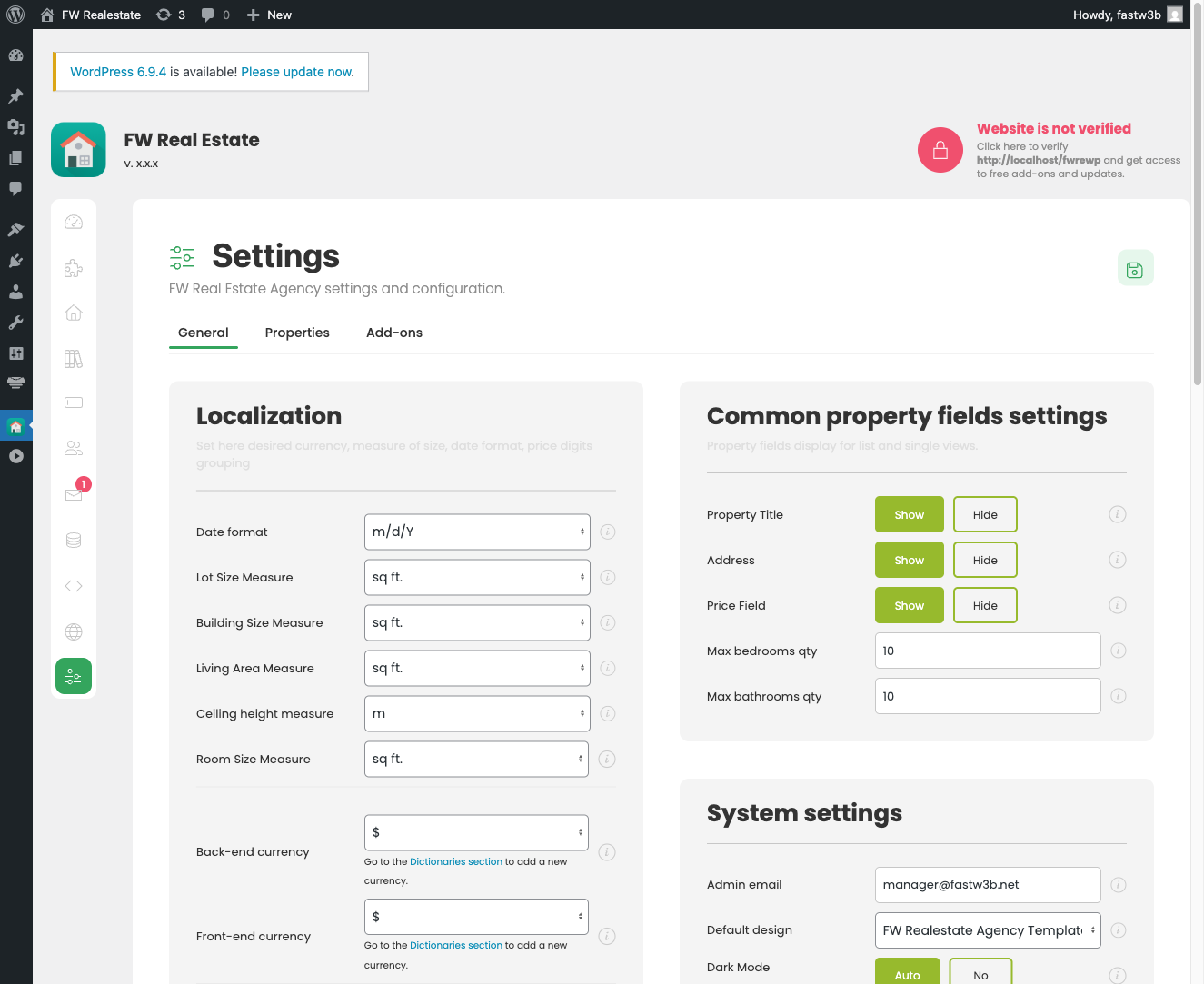
FW Real Estate uses PHP's GD library to resize images on upload (when Image Size Mode is set to Custom in Settings → General → Image Sizes). If GD is not installed, resizing will fail.
- Confirm GD is available under System → System Information → PHP Information — search for
gdin the page. - If GD is missing, ask your hosting provider to enable the
php-gdextension. - As a temporary workaround, switch Image Size Mode to Original in Settings — this skips resizing entirely and stores images as uploaded.
Upload Folder Permissions
Joomla stores uploaded files in the images/ directory (and subdirectories created by FW Real Estate within it). If the web server process cannot write to this folder, uploads will fail.
- The
images/folder and all subdirectories used by FW Real Estate must be writable by the web server user. - The recommended permission on Linux servers is 755 for directories and 644 for files.
- Avoid setting permissions to 777 on production servers — this is a security risk.
- If you are unsure which user your web server runs as, ask your hosting provider to set the correct ownership on the
images/directory.
Quick Reference: Recommended PHP Values
- upload_max_filesize — 32M or higher
- post_max_size — 64M or higher (must exceed upload_max_filesize)
- memory_limit — 256M minimum; 512M for large images
- GD extension — must be enabled for image resizing
After correcting any of these settings, retry the upload from the property's Gallery tab. If uploads succeed but existing images are the wrong size, use the Resize Images button in Settings → General → Image Sizes to reprocess them.