Creating Your First Listing
Creating Your First Property Listing
Before adding your first property, it helps to have a few dictionary values in place — at minimum a property type and a status (for example, "House" and "For Sale"). If your dictionaries are empty, you can add values on the fly directly from the property form without leaving the page.
Open the New Property Form
In the Joomla administrator, go to FW Real Estate → Properties and click New in the toolbar. The property edit form opens.
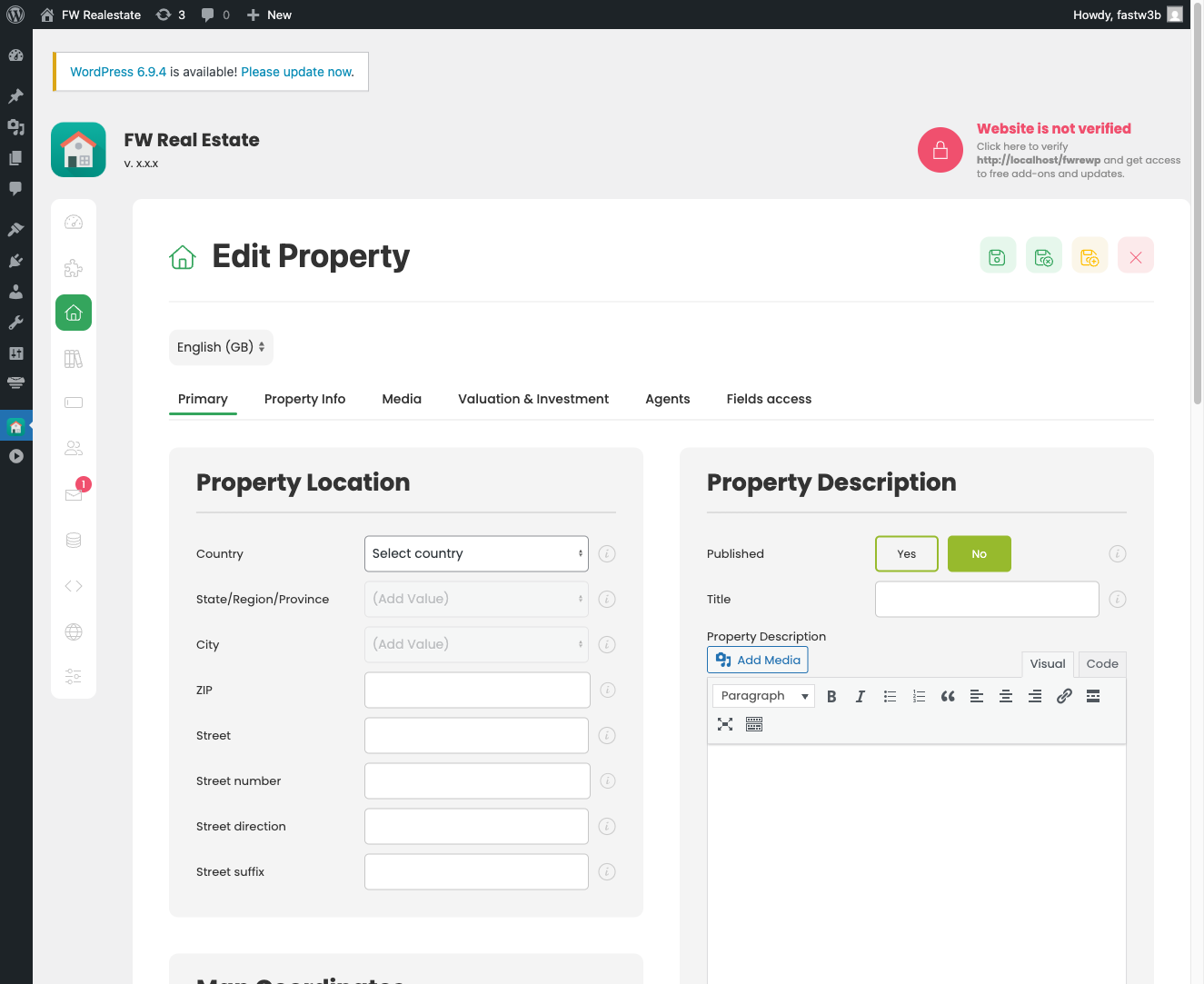
Fill In the Basic Details
Work through the main fields on the form:
- Title — Enter the property headline (for example, "3-Bedroom Family Home in Riverside"). This is required.
- Status — Select a value such as "For Sale" or "For Rent" from the dropdown. If no values appear, type a name and save it to the dictionary on the spot.
- Type — Choose the property type (House, Apartment, etc.). Again, you can add a new type directly from this field if needed.
- Category — Optional grouping. Add or select a category the same way.
- Price — Enter the numeric price. The currency symbol is controlled in Settings.
Enter the Address
Address fields are built into the component — no plugin is required. Fill in the Street, City, Region, Country, and ZIP fields as applicable. City, region, and country values come from the Location dictionaries and can be added on the fly if your lists are not yet populated.
Write the Description
Scroll to the Description field. This is a full WYSIWYG editor where you can write and format the property details — feature lists, neighbourhood notes, additional specifications, or anything relevant to buyers or renters.
Upload Images
Click the Gallery tab to access the image upload area. Drag and drop photos onto the upload zone or use the file picker. Once uploaded, drag thumbnails to reorder them — the first image is used as the main listing photo. Add alt text to each image if needed for accessibility and SEO.
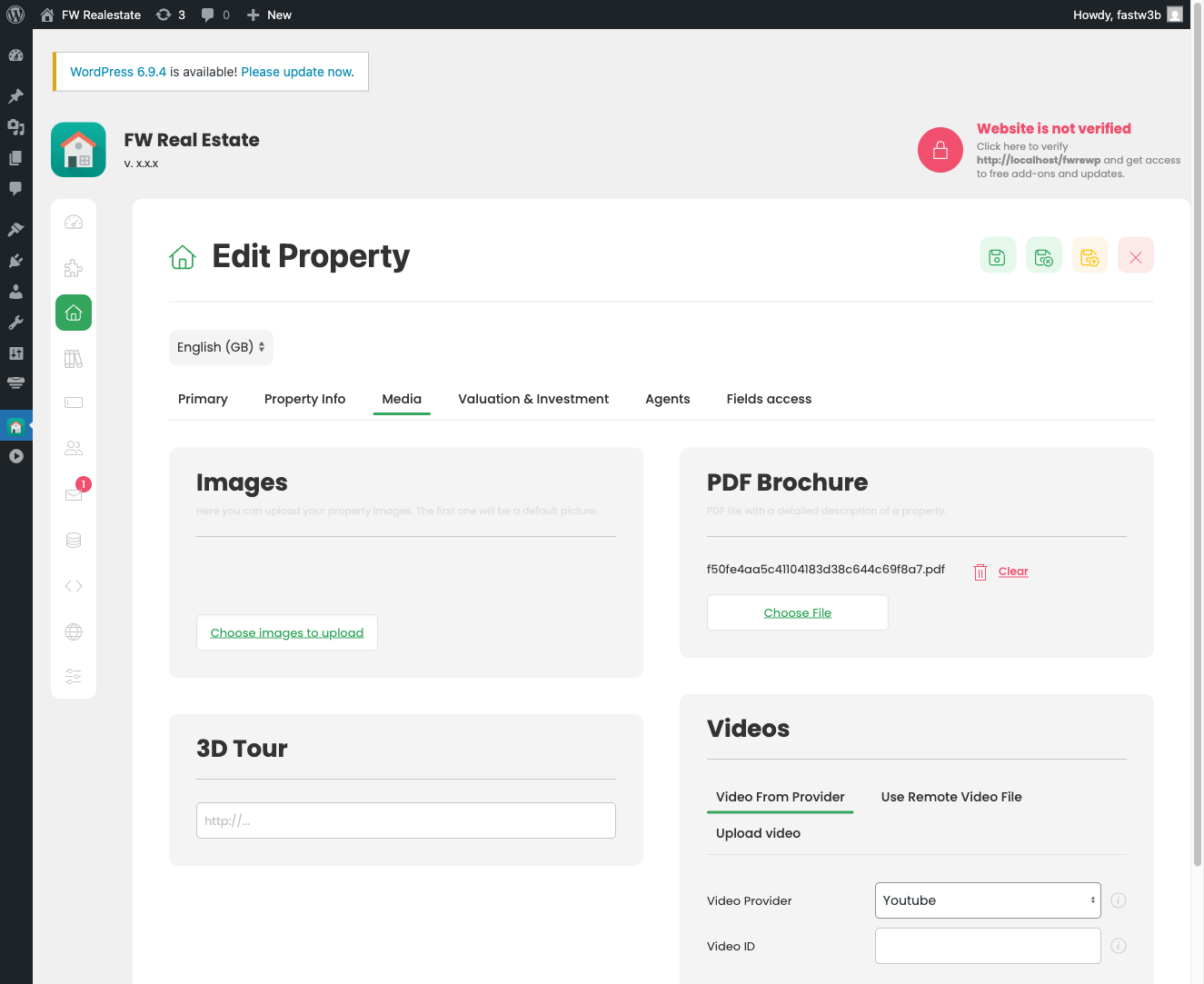
Additional Tabs and Fields
Depending on which plugins are active on your site, the form may include extra tabs — for example, a map tab for setting coordinates, a fields tab for custom attributes, or an agent assignment tab. Fill in any relevant information across those tabs. Plugins are what extend the standard form with these additional sections.
Publish and Save
Before saving, confirm that Status (the publishing state in the top-right toolbar area) is set to Published. A property that is unpublished will not appear on the frontend. Click Save & Close in the toolbar.
View Your Listing
Navigate to the Properties page on your site's frontend. If a Properties Listing menu item has been created, your new property will appear there. Click through to the detail page to confirm the title, price, address, description, and gallery are all displaying correctly.
If no Properties page exists yet, go to Menus in the Joomla administrator, add a new menu item, and select FW Real Estate → Properties Listing as the menu item type.

