Managing Categories
Managing Categories
Categories organise your menu items into logical groups — such as Starters, Mains, or Drinks. You can nest categories, reorder them by dragging, and extend each category with additional fields through optional plugins.
Go to FW Food Menu → Categories in the Joomla administrator to add, edit, delete, publish, or unpublish categories.
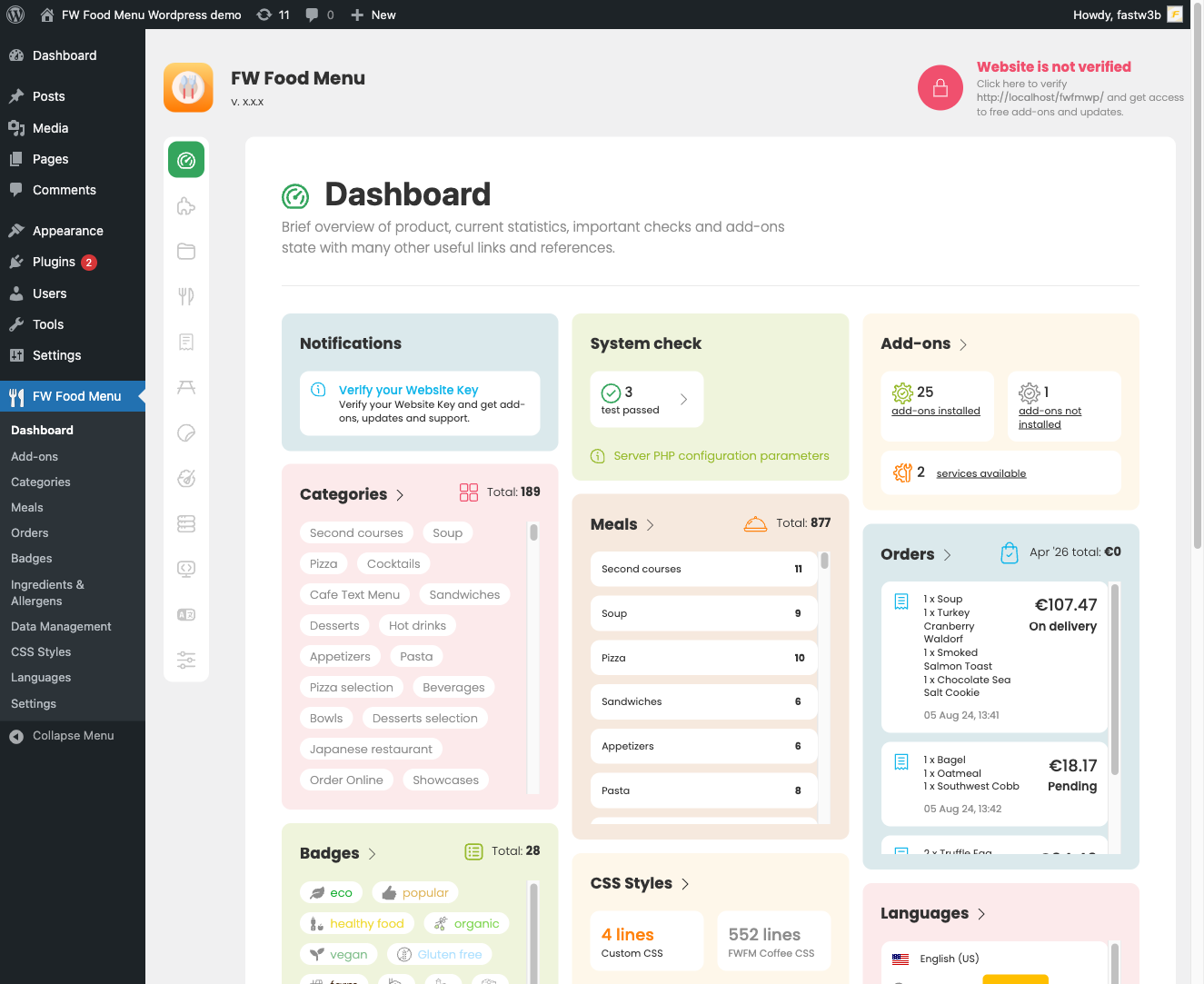
Category Fields
When creating or editing a category, the following standard fields are available:
- Title — The category name displayed on the frontend.
- Alias — The URL slug, auto-generated from the title. Edit it manually if needed.
- Parent — Assign a parent category to create a nested menu hierarchy.
- Description — Optional text describing the category.
- Ordering — Controls the position of this category within the list.
- Status — Set to Published or Unpublished to show or hide the category on the frontend.
Nesting Categories
Use the Parent field to build a hierarchy. Select any existing category as the parent to make the current category a child of it. This allows you to create subcategories — for example, a "Cocktails" subcategory under a "Drinks" parent.
Reordering Categories
Drag the order handle next to any category row to reposition it in the list. The saved order is reflected on the frontend wherever your menu is displayed.
Plugin-Extended Category Fields
The following additional fields become available in the category edit form when the corresponding plugin is installed and enabled:
- Columns — Set how many columns menu items in this category are displayed in. Requires the Columns plugin.
- Color — Apply custom colours and background styling to a category. Requires the Color plugin.
- Time — Define availability hours for a category, restricting when it appears to customers. Requires the Time plugin.
- Image — Attach an image to the category for display on the frontend. Requires the Image plugin.
Plugins must be enabled in both the Joomla Plugin Manager and under FW Food Menu → Addons for their fields to appear in the category form.

