 FW Real Estate – Documentation
Understanding the Dashboard
Understanding the Dashboard
The FW Real Estate admin panel is accessible from the FW Real Estate menu in the Joomla administrator. It is organized into dedicated sections, each handling a specific part of your property listing site.
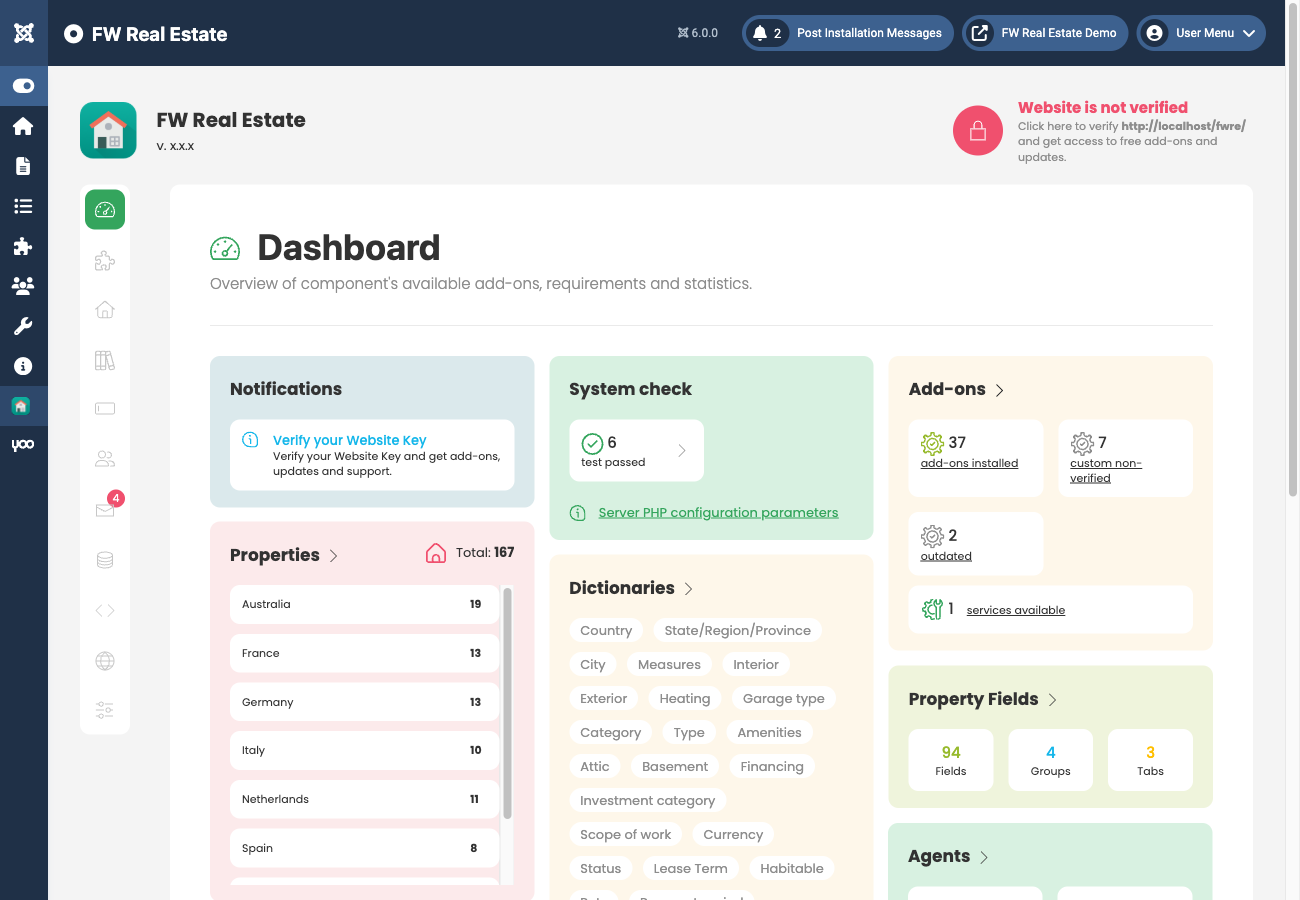
Properties
The Properties section is the main listing manager. From here you can add, edit, delete, and publish or unpublish properties. Each property record includes standard fields such as title, status, type, price, address, gallery images, map coordinates, and agent assignment.
Agents
The Agents section is always visible in the sidebar. If the Agents plugin is not installed and enabled, opening the section displays a red warning banner: "FWRE Agents Plugin must be installed and enabled for this section to function. Check Add-ons section for more info." This same pattern applies to other sections that depend on a specific plugin — the section remains visible in the menu, but cannot be used until the required plugin is active.
Dictionaries
Dictionaries manage all dropdown values used across the component — property types, categories, statuses, amenities, locations (countries, regions, cities), measurement units, and more. The list of available dictionary types is dynamic; some add-ons introduce their own dictionaries when installed.
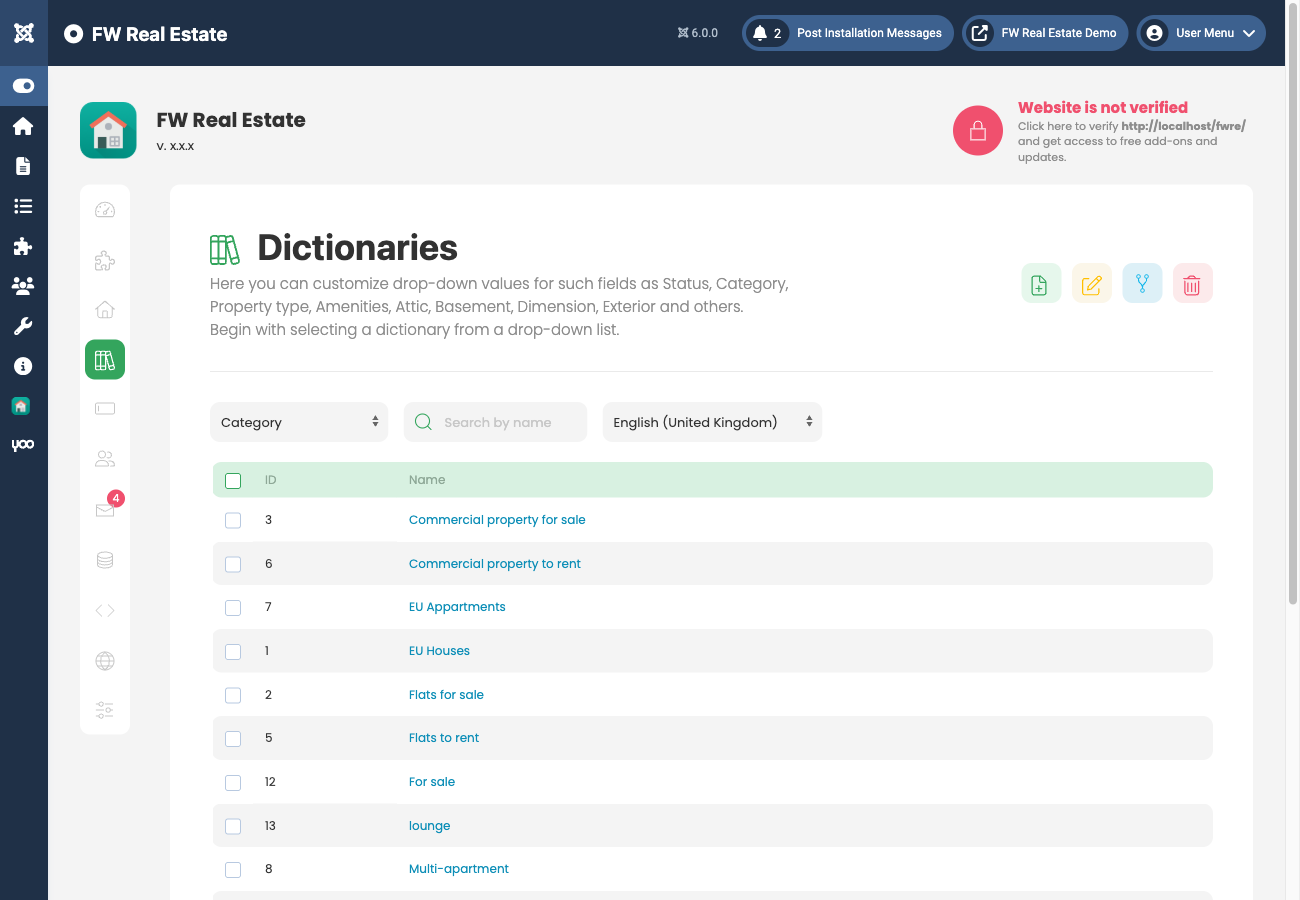
You do not need to pre-populate every dictionary before you start adding properties. Dictionary values can be added on the fly directly from the property edit form, without leaving it.
Fields
The Fields section gives you control over all built-in property fields. Any built-in field can be unpublished to hide it from both the edit form and the frontend, or you can change its access level — for example, making a field visible to registered users only.
When the Custom Fields plugin is enabled, this section also allows you to create custom field groups, tabs, and fields of any type, place them within those groups and tabs, and delete custom fields you no longer need.
Leads
The Leads section stores all messages and enquiries submitted by visitors from any property page. This section requires the Contact Form plugin to be installed and enabled. Without it, the section displays the standard plugin-required warning.
Settings
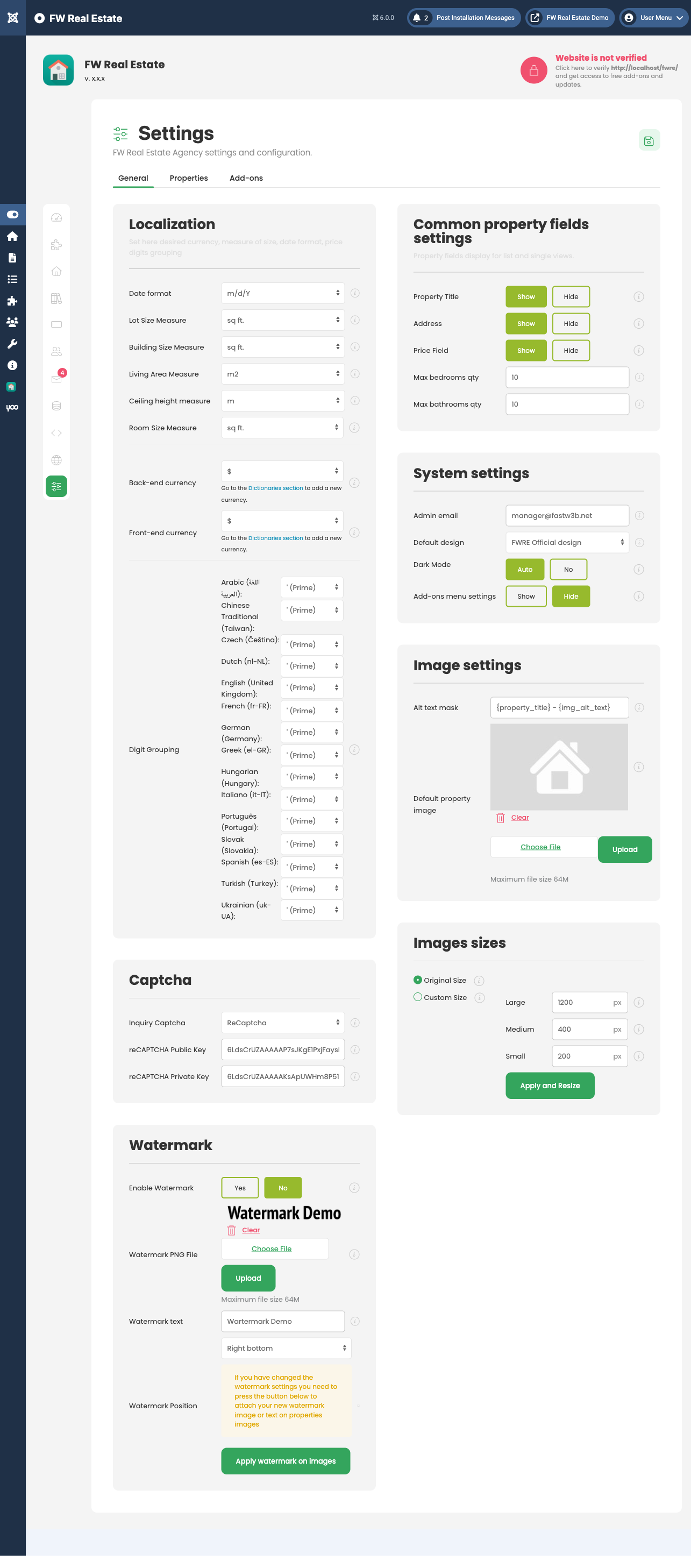
Settings is the global configuration area for the component. It covers localization, display options, image handling, system settings, and per-property form behaviour. Plugin-specific configuration appears in the Addons tab within Settings once the relevant plugins are active.
Data Management
The Data Management section contains three tabs:
- MLS/IDX/XML — displays information about the custom integration service, including an Order a free quote from Fastw3b button. Once a custom integration has been set up, its details appear here.
- Backup — exports all property data as a backup file, useful for migrating to another site or keeping a local copy.
- Restore — imports a backup file previously created with the Backup tab.

