 FW Real Estate – Documentation
Image Upload Problems
Image Upload Problems
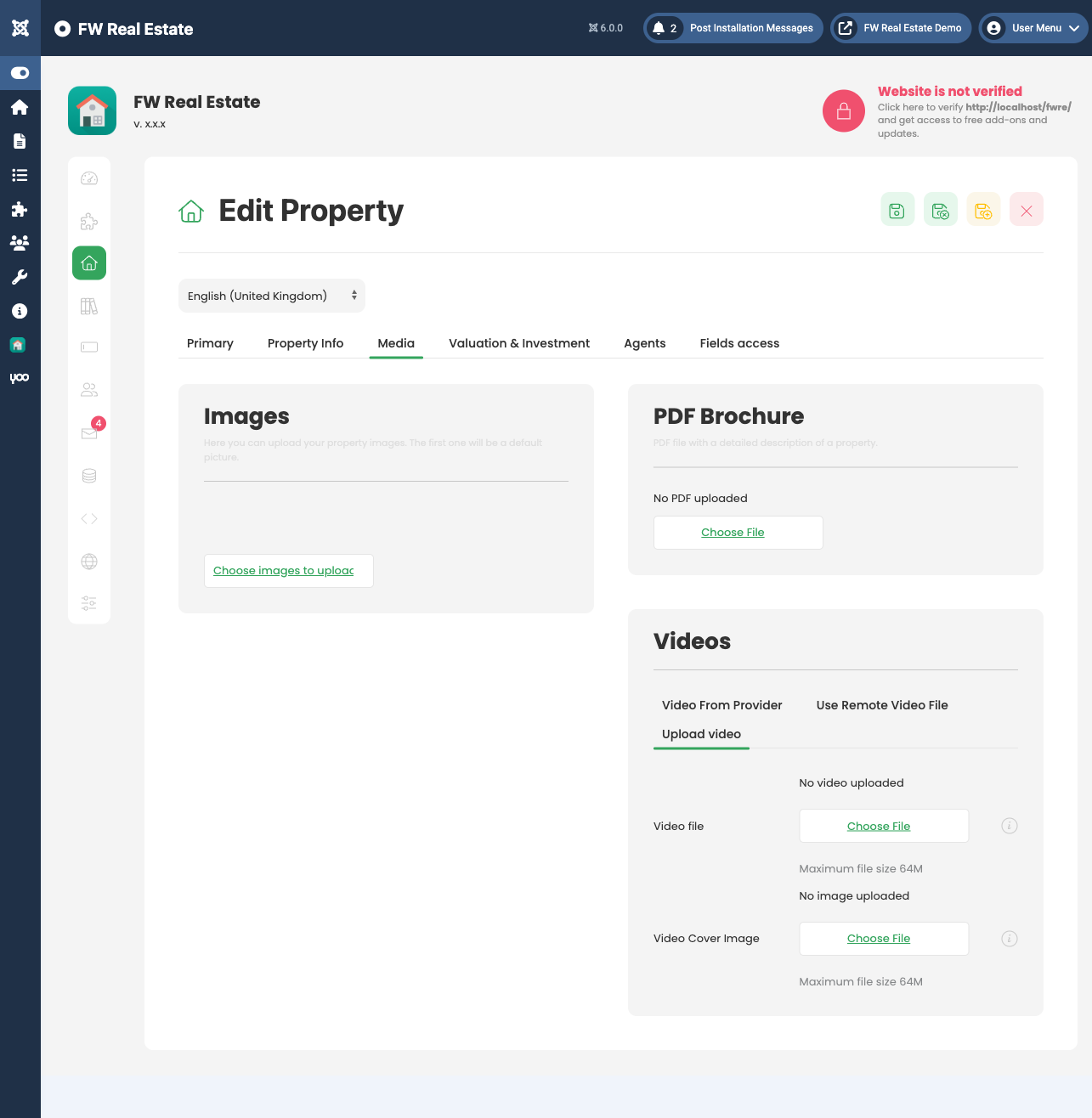
If property images fail to upload or appear broken after uploading, the cause is almost always a PHP server configuration limit or a missing image processing library. Work through each check below to identify and fix the issue.
PHP File Size Limits
PHP enforces two separate size limits that both affect uploads. If either value is too low, uploads will silently fail or be cut short.
- upload_max_filesize — the maximum size of a single uploaded file. Recommended: 32M or higher.
- post_max_size — the maximum size of the entire POST request, which includes all files in a batch upload. This must be larger than
upload_max_filesize. Recommended: 64M or higher.
Set these values in your php.ini file, or via your hosting control panel if direct php.ini access is not available:
upload_max_filesize = 32M
post_max_size = 64M
Memory Limit for Image Processing
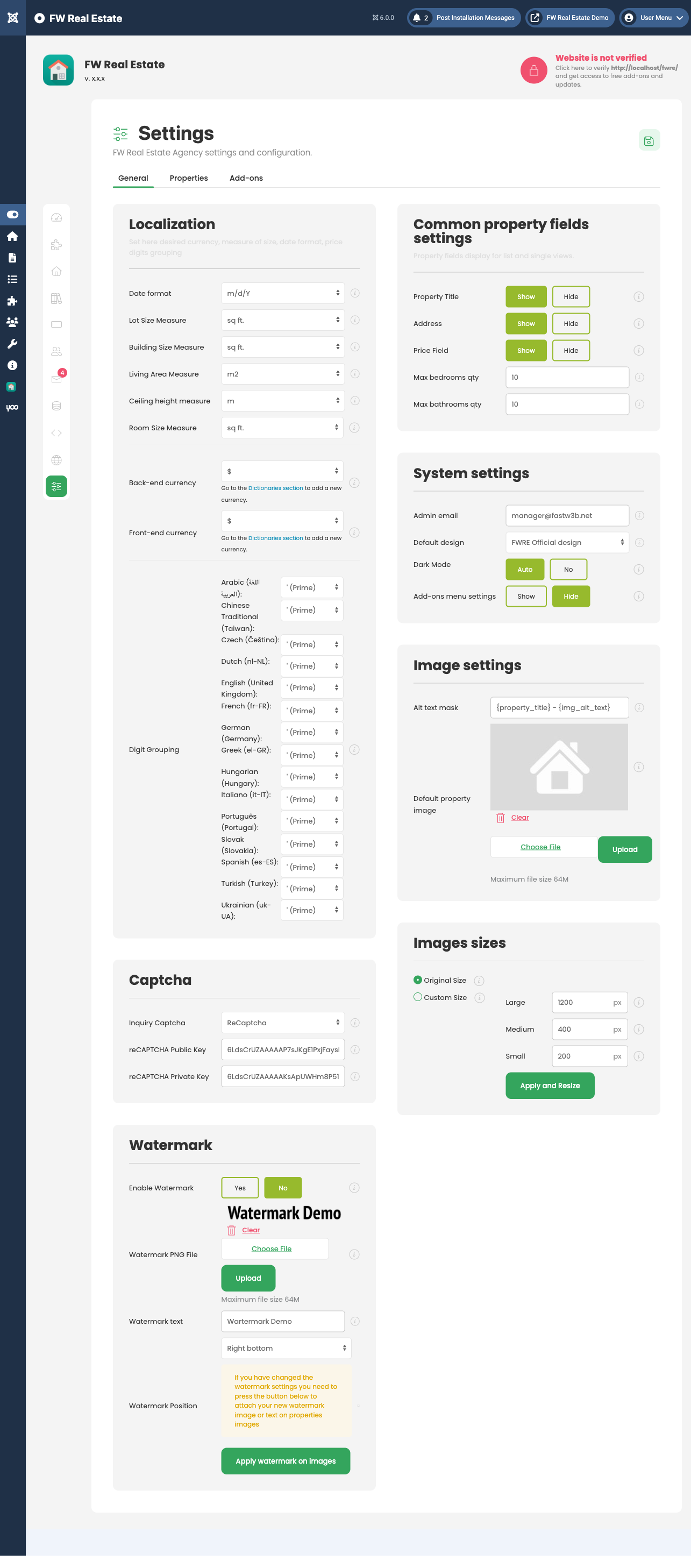
When FW Real Estate resizes images on upload (if Image size mode is set to Custom in Settings → General → Image Sizes), PHP must load the full image into memory. Large or high-resolution images can exhaust the default memory limit and cause the upload to fail without a clear error message.
Recommended value:
memory_limit = 256M
For very large source images, 512M may be required.
GD Library Not Installed
FW Real Estate uses PHP's GD library to resize and process images. If GD is not installed or not enabled on your server, image processing will fail entirely.
To check whether GD is available, ask your hosting provider or check the output of phpinfo() on your server. Look for a section labelled gd. If it is absent, contact your host and request that the GD extension be enabled.
File Permissions on the Upload Directory
The web server process must have write access to the directory where property images are stored. If permissions are too restrictive, the upload will appear to complete but no file will be saved.
- The upload directory must be writable by the web server user.
- The recommended permission setting for upload directories is 755. In some shared hosting environments 775 is required — check with your host.
- Never set directories to 777 on a production server.
If you are unsure which directory is used, check your Joomla media settings or ask your hosting provider to verify write permissions on the images/ folder tree.
Maximum Image Dimensions
Even within memory and file size limits, extremely large source images can cause processing timeouts. Use the image dimension settings in Settings → General → Image Sizes to control output dimensions:
- Large — full-size image shown on the property detail page (default: 1200 px).
- Medium — listing card thumbnail (default: 400 px).
- Small — small thumbnails (default: 200 px).
If you change these values after images have already been uploaded, click the Resize Images button to apply the new dimensions to existing gallery images.
Recommended PHP Configuration Summary
- upload_max_filesize: 32M
- post_max_size: 64M
- memory_limit: 256M
- GD library: must be enabled
- Upload directory permissions: 755 (writable by the web server user)

