 FW Real Estate – Documentation
Search Not Working
Search Not Working
If the search form submits but lands on the wrong page, filters are not narrowing results, or the Save Search button is missing, the following checks resolve the most common causes.
Search Form Redirects to the Wrong Page
The FWRE Search Module submits to whichever Properties Listing menu item is specified in its Redirect to menu item parameter. If that parameter is not set, the module falls back to the default component router, which may resolve to an unexpected page — or produce no results at all.
- Go to Extensions → Modules and open your FWRE Search module instance.
- Locate the Redirect to menu item field.
- Select the correct Properties Listing menu item from the picker.
- Save the module and test the search form again.
Every FWRE Search module instance should have this field explicitly set. If you have multiple search modules pointing to different listing pages, verify each one independently.
Filters Are Not Narrowing Results
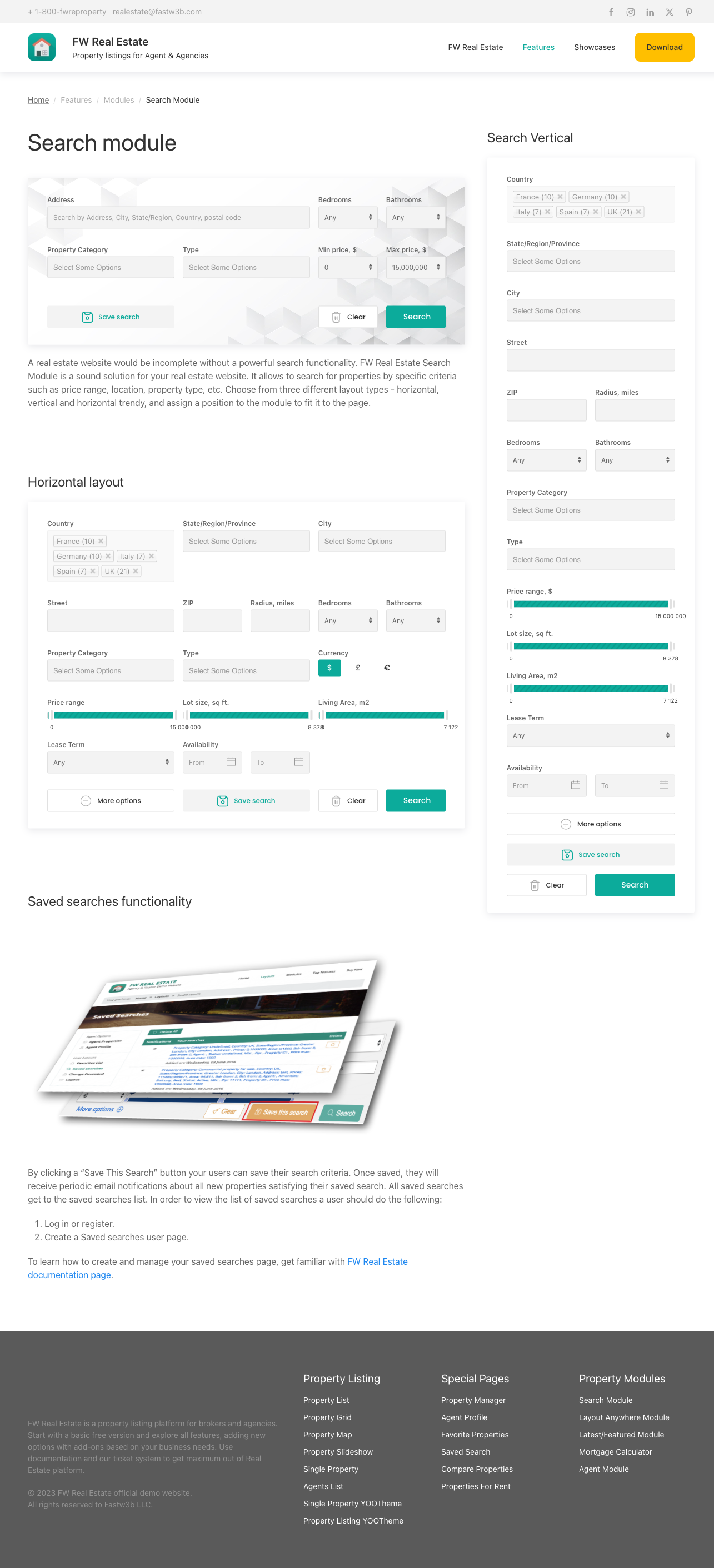
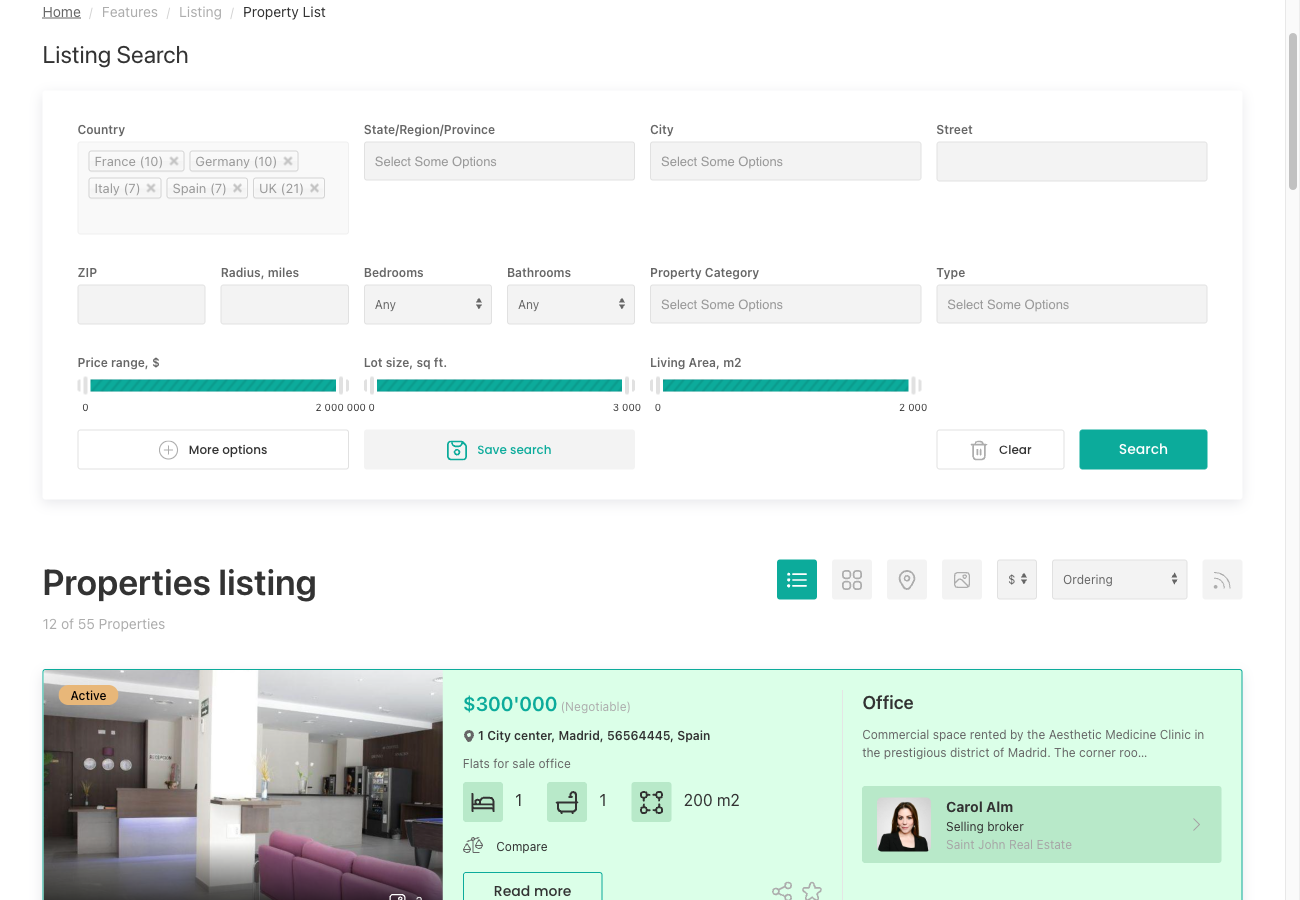
Each filter field in the FWRE Search Module is controlled by the Display fields checkboxes in the module's settings. A field that is unchecked there is hidden from both the search form and the results filtering on the target listing page when accessed through that module.
- Open the module instance in Extensions → Modules.
- Review the Display fields checkboxes — bedrooms, bathrooms, category, type, price, area, status, and others are each toggled individually.
- Enable any field that should be available for filtering.
- Save and retest the search.
If a visitor applies a filter on the listing page that was disabled in the originating search module, that filter will not carry through to the results. Enable all fields your visitors need to refine their search.
Save Search Button Not Appearing
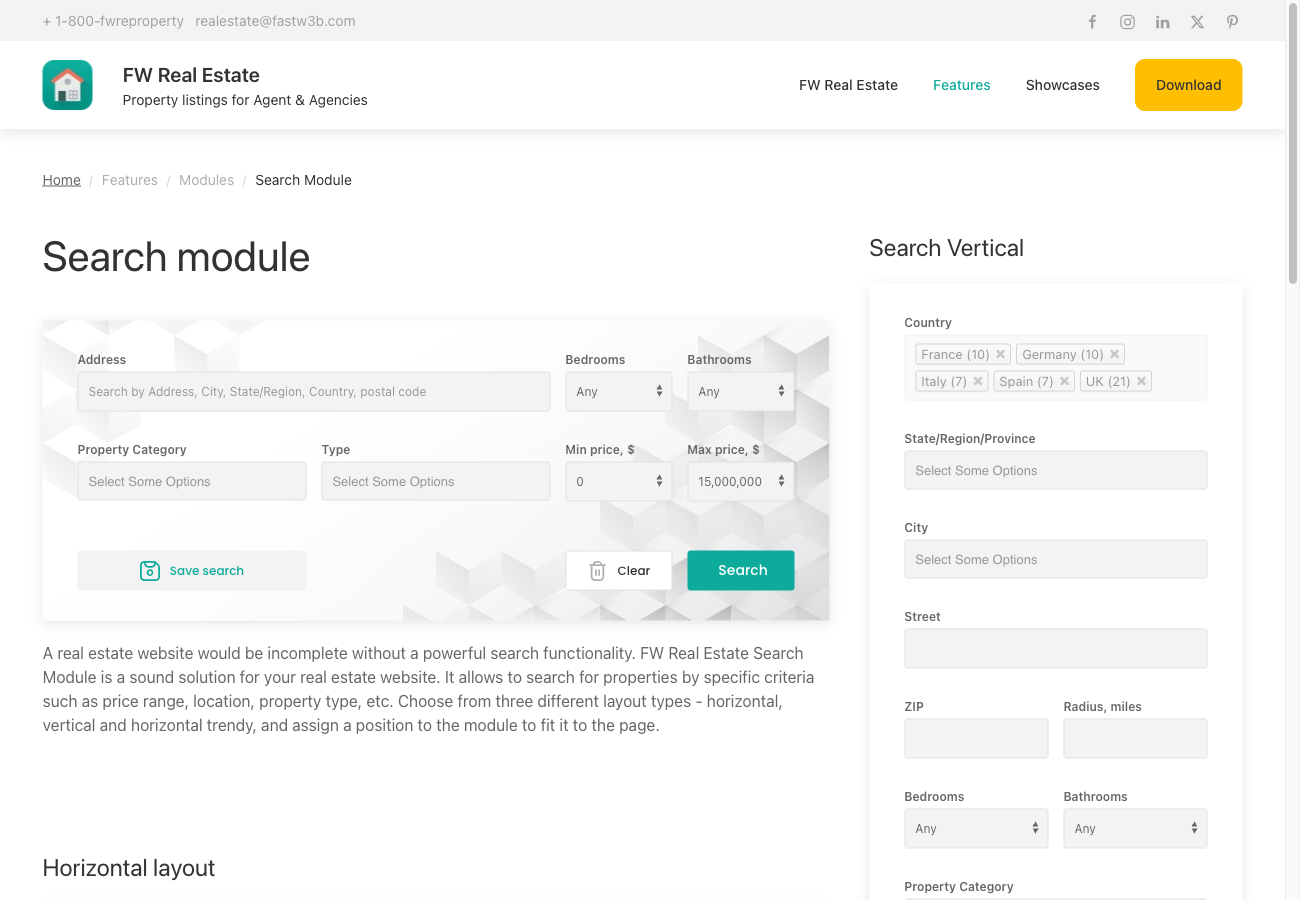
The Save Search button is injected by the FW Real Estate - Saved Searches plugin. If the button does not appear, check both the plugin state and the module display setting.
- Go to Extensions → Plugins and confirm that FW Real Estate - Saved Searches is enabled.
- Open your FWRE Search module instance and check the Display fields checkboxes.
- Ensure Save Search button is checked.
- Save the module and reload the frontend.
Both conditions must be true — the plugin must be enabled and the Save Search button must be checked in Display fields — for the button to appear.
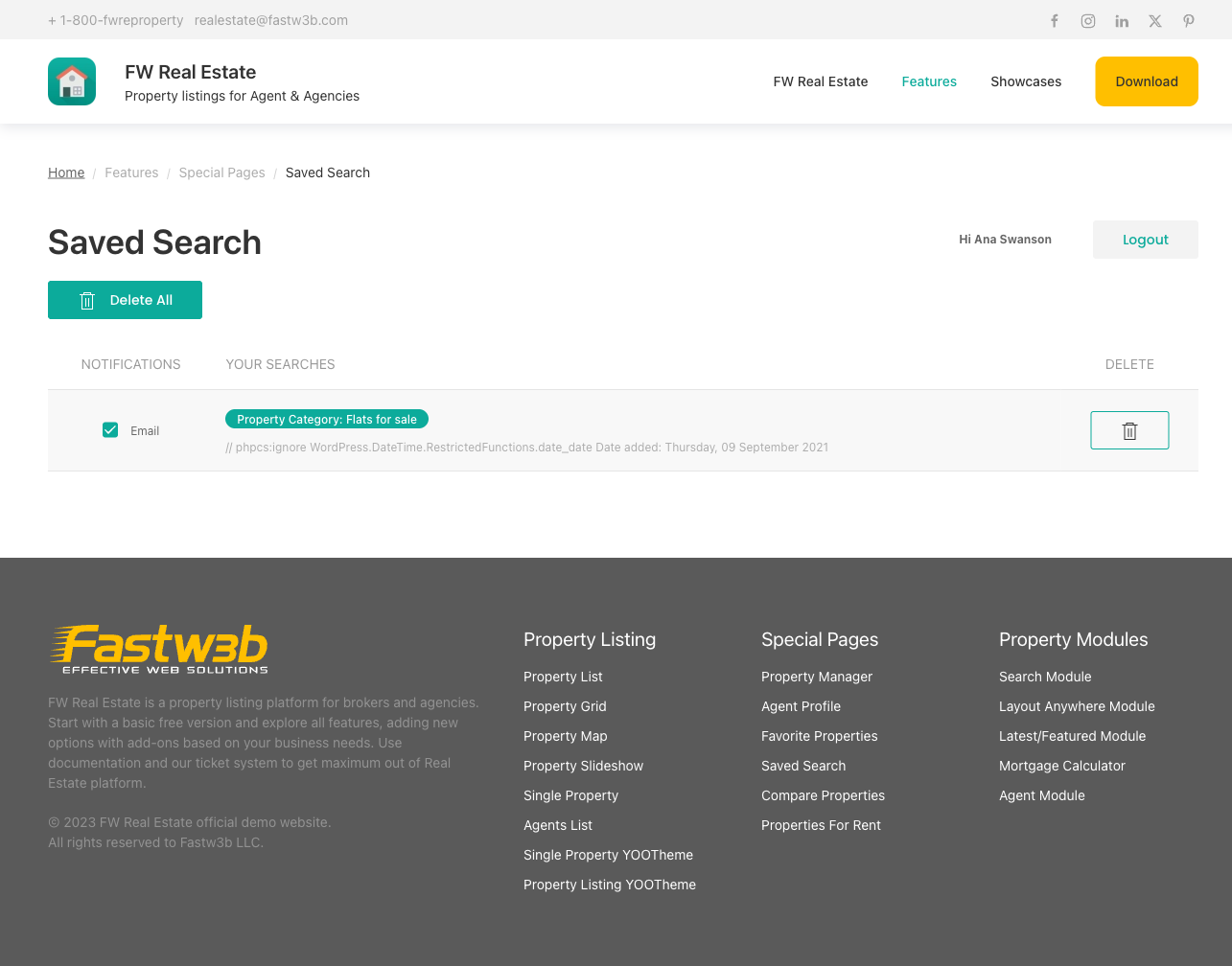
Once the button is visible, logged-in users can save their active filters directly. Their saved searches are then accessible from the frontend User Section.