 FW Real Estate – Documentation
Map Not Showing
Map Not Showing
Work through the checklist below to identify and fix map display problems in FW Real Estate.
1. Map View Plugin Not Enabled
The map feature requires the FW Real Estate - Map View plugin to be active. Check that it is enabled in one of two places:
- FW Real Estate → Addons — find the Map View entry and confirm it is enabled.
- Joomla Plugin Manager — search for "Map View" and verify the plugin status is set to Enabled.
2. Google Maps API Key Not Entered or Invalid
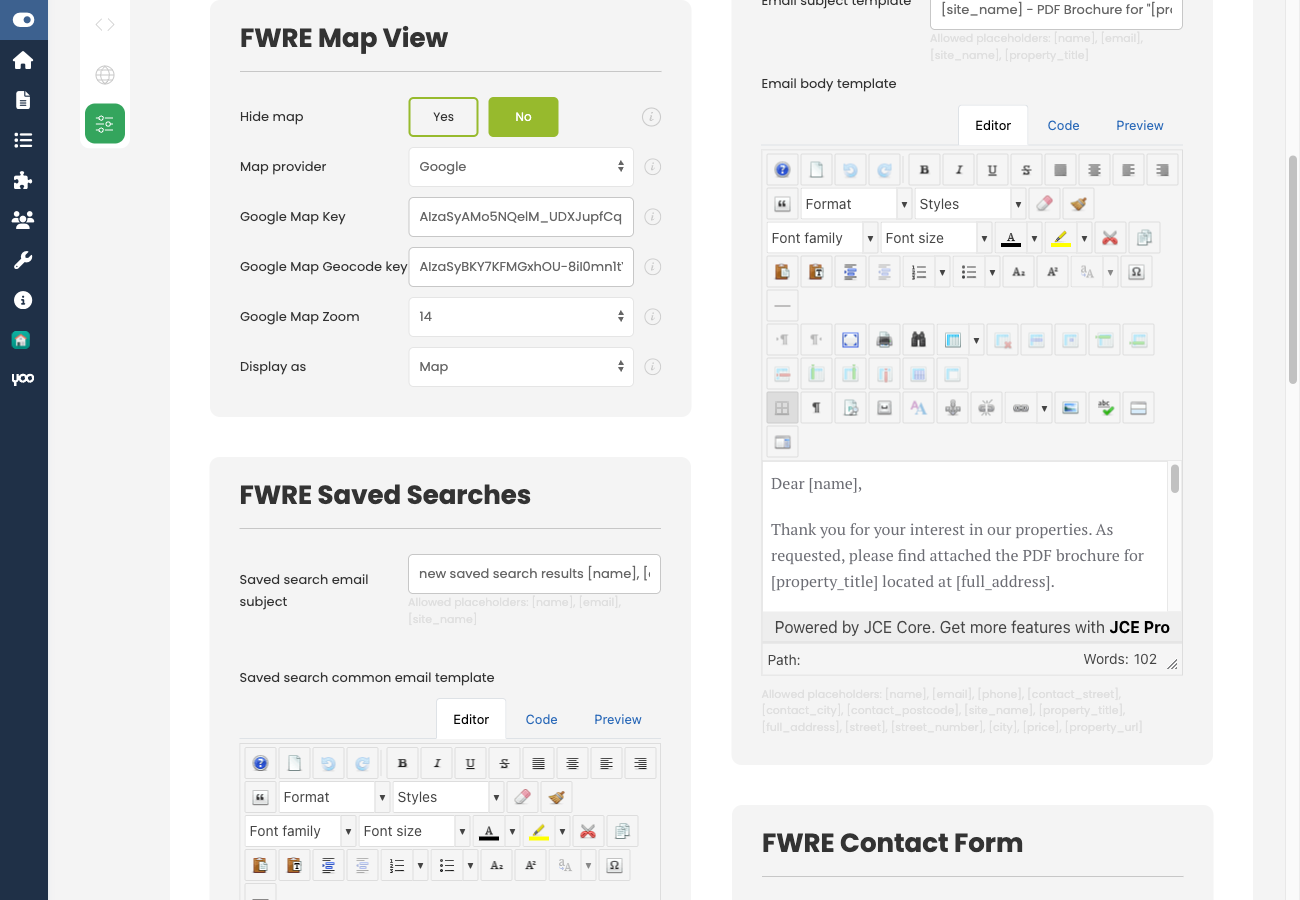
Without a valid API key, Google Maps loads briefly then overlays an error message and does not display the property location pin. Enter your key under Settings → General → Map View in the Google Maps API key field. Open your browser's developer console (F12) to see the exact error message returned by Google, which will indicate whether the key is missing, invalid, or has incorrect permissions.
3. Wrong API Key Restriction Type
FW Real Estate requires two separate Google API keys with different restriction types:
- Google Maps API key — used for displaying the map in the visitor's browser. This key must use an HTTP referrer (websites) restriction with your site URL. Enable the Maps JavaScript API and Geocoding API on this key.
- Google Geocoding API key — used server-side when a property is saved to convert an address into coordinates. This key must use an IP address restriction. HTTP referrer restrictions block server-side requests, causing geocoding to fail silently. Enable the Geocoding API on this key.
Using the same key for both purposes will not work. If geocoding appears to do nothing when saving a property, a mismatched restriction type is the most likely cause.
4. Property Coordinates Not Set
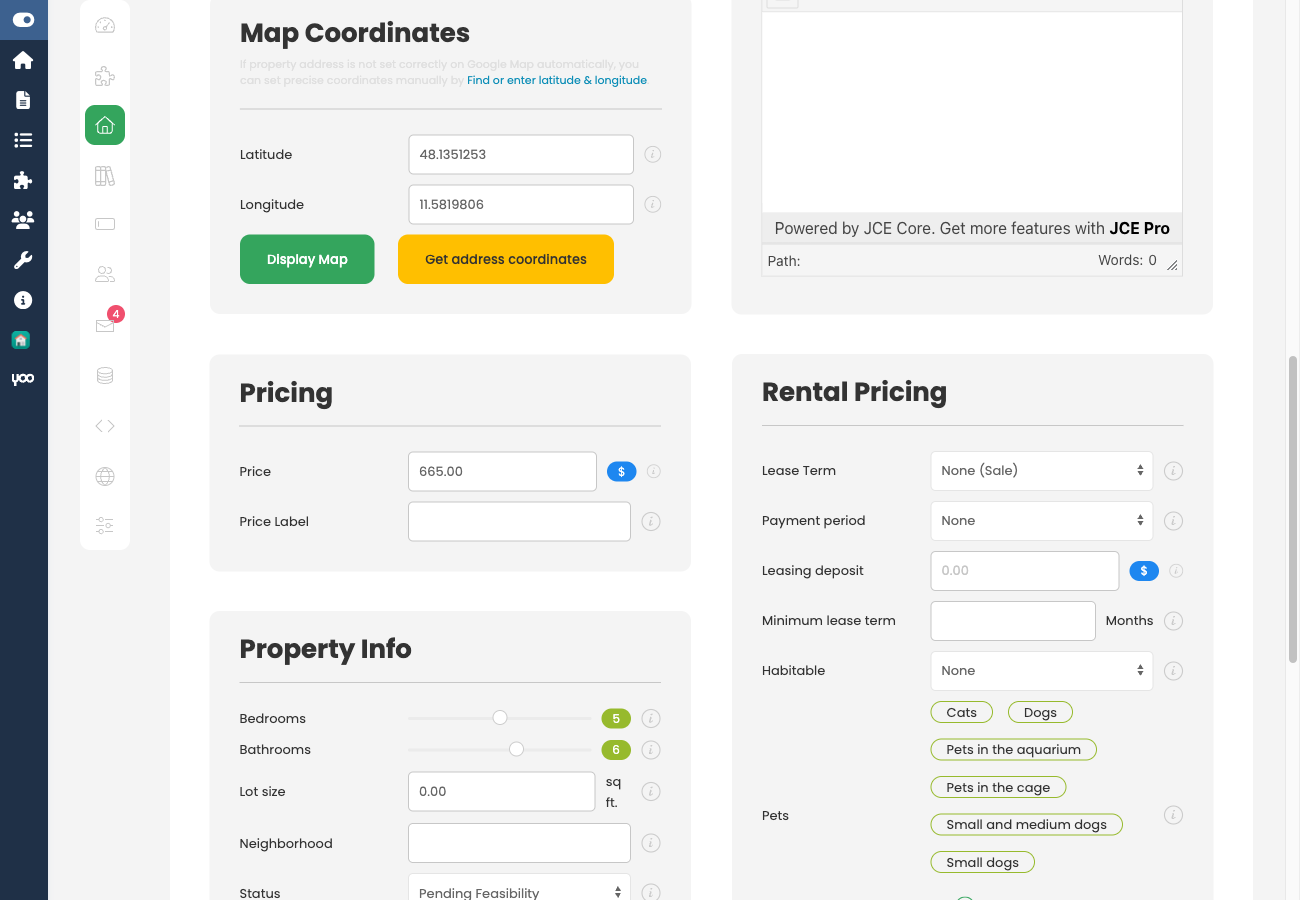
Properties with no latitude and longitude set do not appear on the Map View layout or the listing page map. Open the property in the admin edit form, scroll to the Map section, and set the coordinates using one of these methods:
- Type the address into the address field — the map geocodes it automatically if a valid Geocoding API key is configured.
- Drag the marker to the correct position on the map.
- Enter the latitude and longitude values directly.
5. Google API Quota Exceeded
If the map was working previously but has stopped, check your Google Cloud Console for quota limits and billing status. Exceeded quotas or a suspended billing account will prevent maps and geocoding from loading.
6. MapBox Token Invalid or Expired
If you have selected Map Box as your map provider, verify that the token entered in the MapBox API key field is current and has not been revoked. Log in to your MapBox account at mapbox.com to check the token status and generate a new one if needed.

