 FW Real Estate – Documentation
Common Issues
Common Issues
The following problems are reported most frequently by FW Real Estate administrators. Work through the relevant checklist before contacting support.
Component Not Appearing After Installation
If the FW Real Estate menu does not appear in the Joomla administrator after installation, the component may have been installed but left unpublished.
- Go to Extensions → Manage in the Joomla administrator.
- Search for FW Real Estate and confirm its status is Enabled.
- If it is disabled, click the status toggle to enable it, then reload the administrator menu.
Properties Not Showing on the Frontend
If the frontend displays a blank page, a 404 error, or simply no properties, check all three of the following:
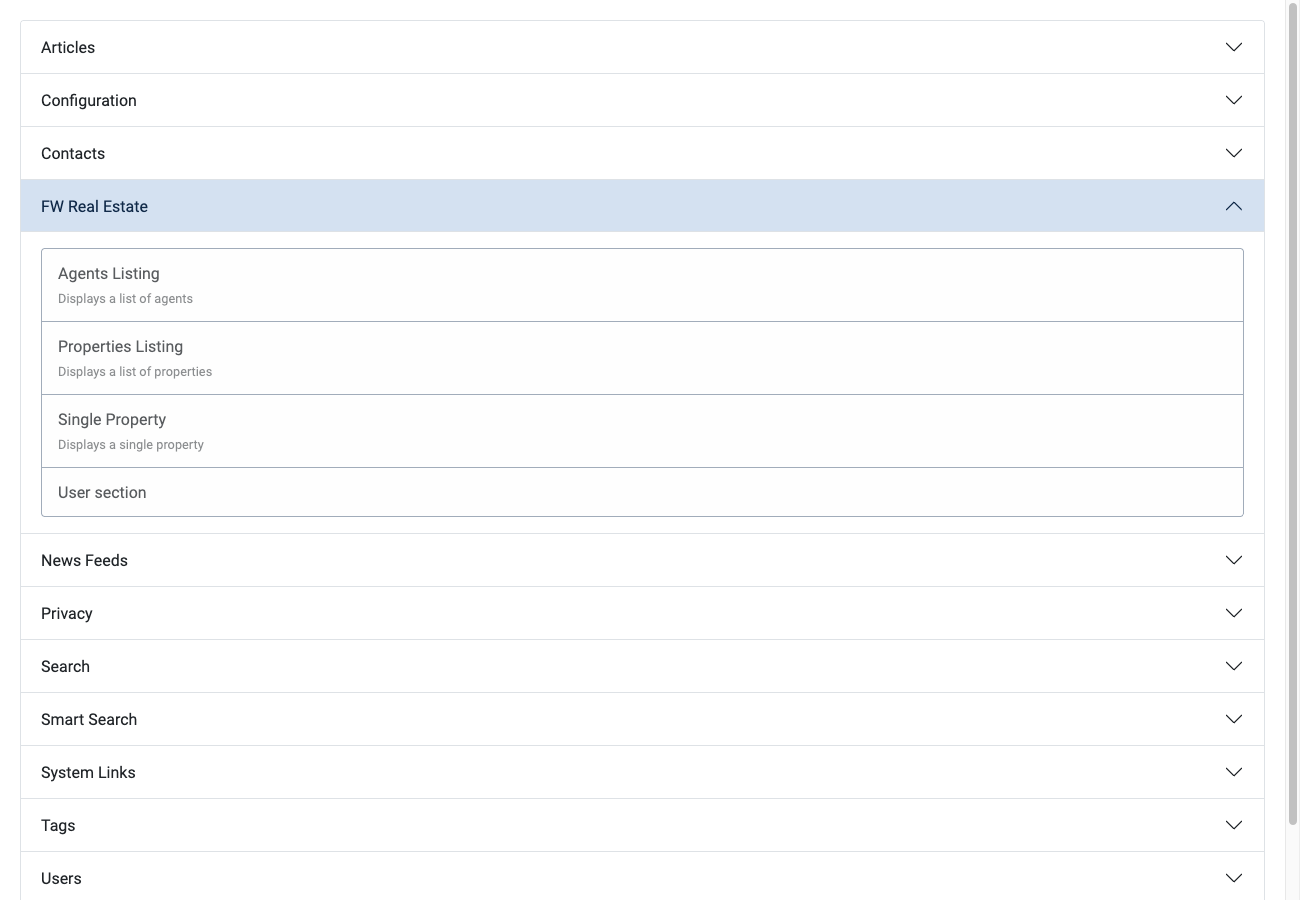
- Menu item exists. A Joomla menu item must be created and linked to one of the FW Real Estate view types (for example, Properties Listing). Go to Menus → [your menu] → Add New Menu Item and select the appropriate type under FW Real Estate.
- Component is published. Confirm the component is enabled in Extensions → Manage.
- Properties are published. Open FW Real Estate → Properties and verify that individual properties have a Published status. Also confirm that all required fields — title, status, and type — are filled in. Properties missing these fields will not appear on the frontend even when their published state is set to yes.
Plugin Features Not Appearing
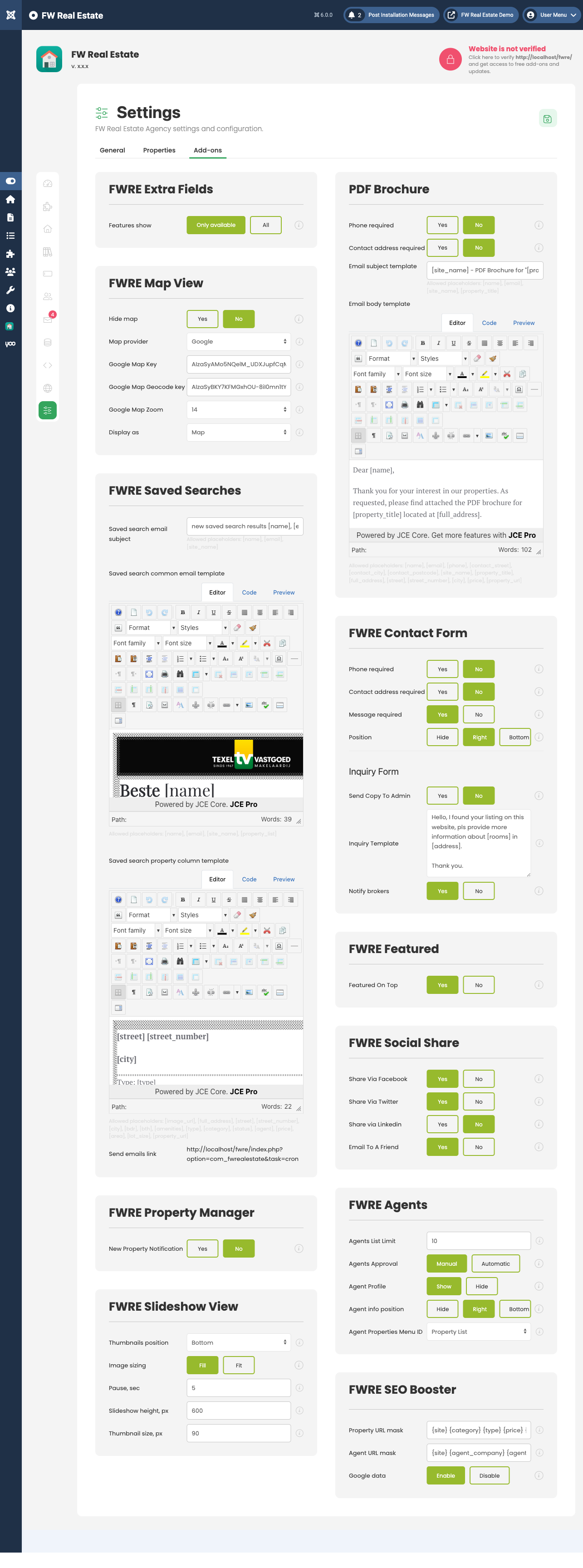
FW Real Estate functionality such as maps, contact forms, favorites, and social sharing is provided by separate plugins. If a feature is missing from the frontend or its settings are absent from the admin panel, the relevant plugin is either not installed or not active.
- Go to FW Real Estate → Settings → Addons. If the Addons tab is empty or a specific plugin card is missing, that plugin is not active.
- Alternatively, go to Extensions → Plugins, search for the plugin by name, and confirm it is Enabled.
- After enabling a plugin, reload the Addons tab — the plugin's settings card should now appear.
Permission-Related Issues
If administrators or agents cannot access certain sections, or frontend users cannot submit or manage properties, review Joomla's access control settings.
- Check Components → FW Real Estate → Settings and review any access-level options configured there.
- Check the Joomla Global Configuration → Permissions tab and the component-level permissions under Options to confirm the correct user groups have the required actions granted.
- For frontend property management, confirm that the Property Manager plugin is enabled and that the relevant user accounts belong to a group with the appropriate permissions.
Frontend Broken After an Update
If the frontend displays layout errors or broken functionality immediately after updating FW Real Estate, do not attempt to diagnose the problem by modifying plugin or extension settings — this risks further data loss or instability.
The safest course of action is to restore your site from the backup taken before the update. Taking a full-site backup immediately before any update is essential; without one, a clean rollback is not possible.
Once the site is restored, or if no backup is available, contact FW Real Estate support with the following information:
- Screenshots clearly showing the broken areas of the frontend.
- The exact steps needed to reproduce the problem.
Support can then identify whether the issue is a known compatibility problem and advise on a safe path forward. Always take a full-site backup before applying any update.

