 FW Real Estate – Documentation
Creating Your First Listing
Creating Your First Listing
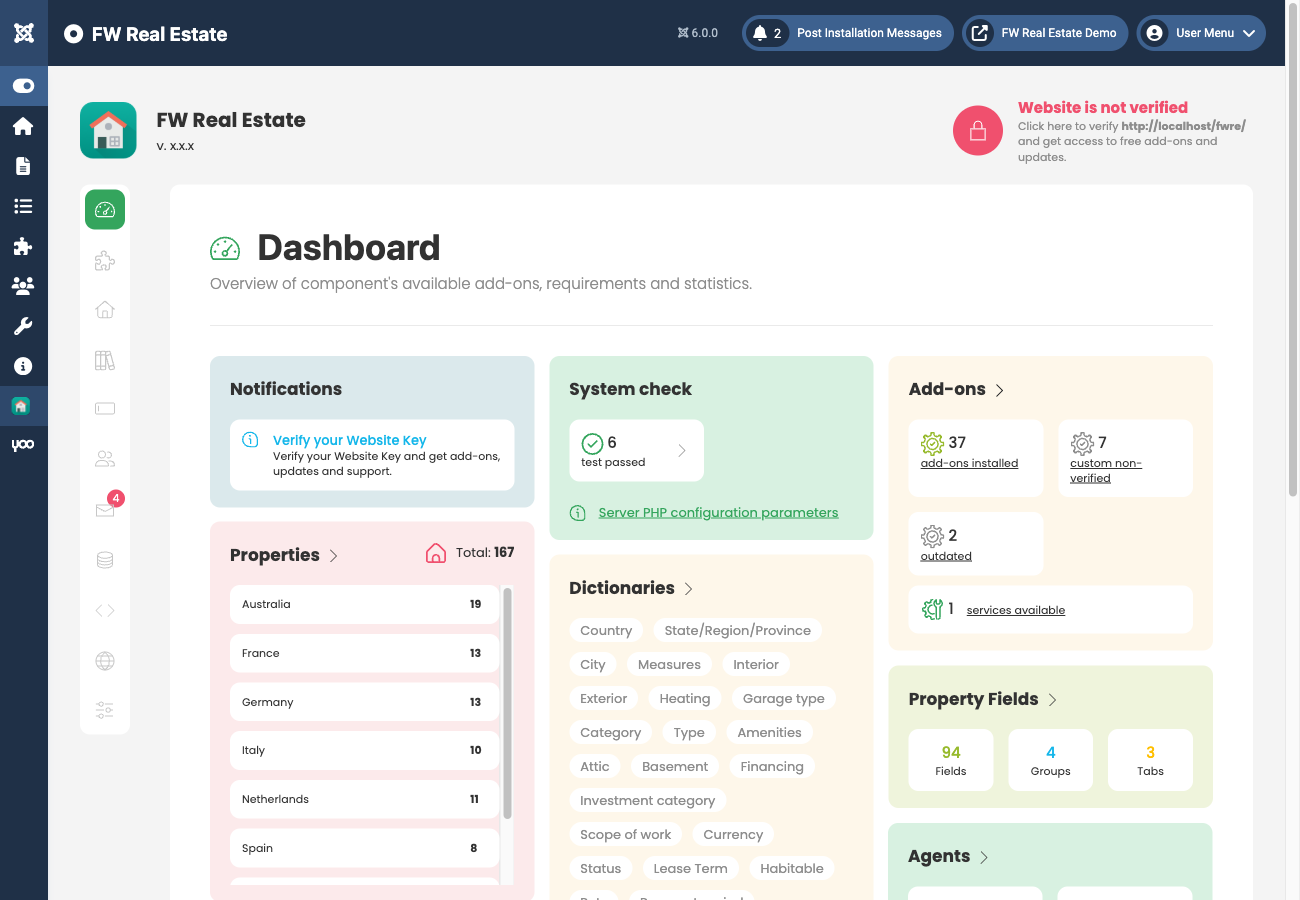
To add a new property, go to FW Real Estate → Properties in the Joomla administrator and click New in the toolbar.
Filling In the Basic Fields
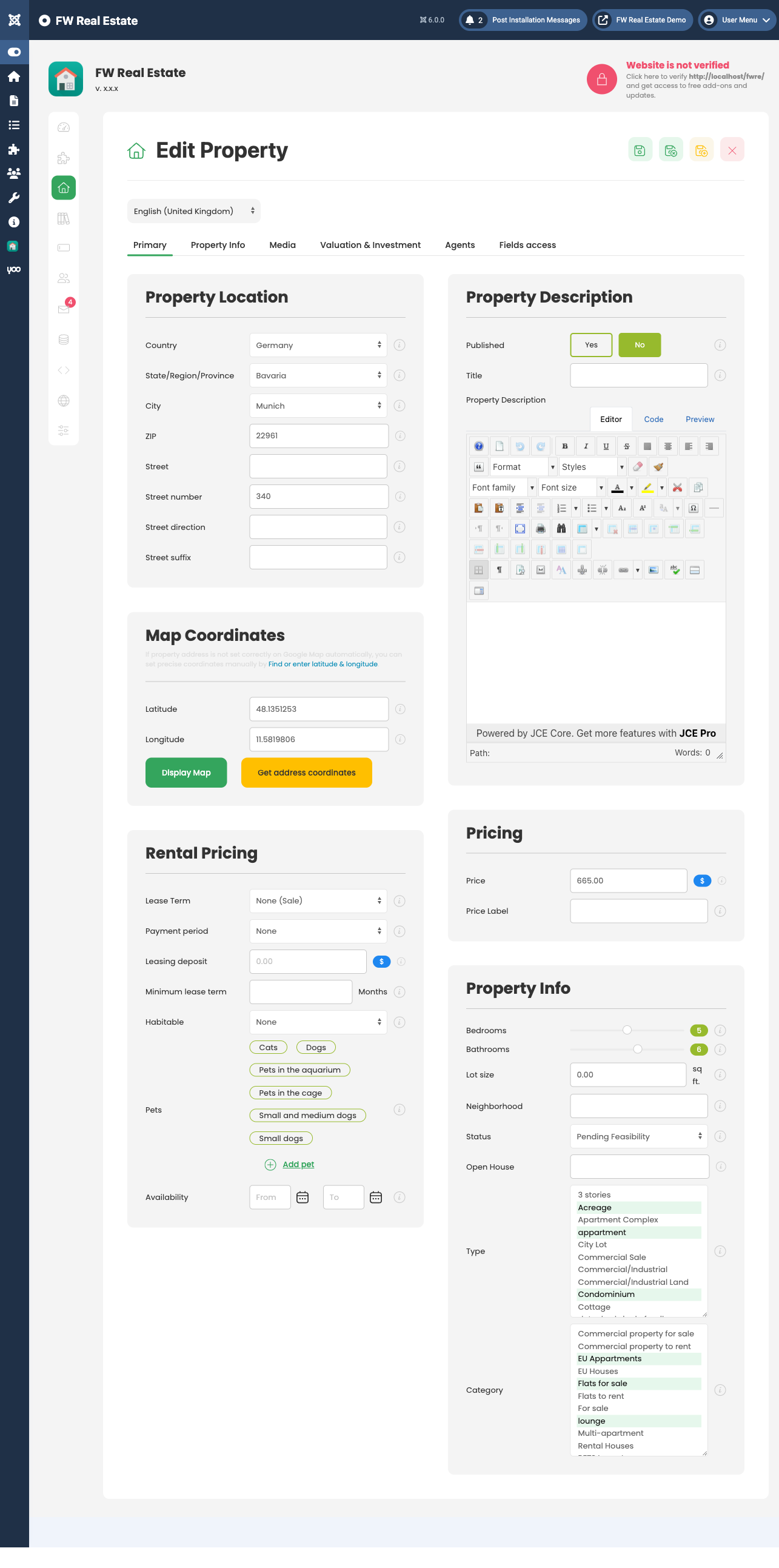
The property form opens on the main details tab. Work through the following fields:
- Title — the property name or headline displayed on listings and the detail page.
- Type — select from your Property Types dictionary (e.g. House, Apartment). You can add a new type on the fly directly from this dropdown without leaving the form.
- Category and Status work the same way — pick an existing value or create one inline.
- Price — enter a numeric value. By default this field is optional; if you want it to be mandatory, enable Price field required under Settings → Properties.
- Bedrooms / Bathrooms — quantity selectors.
- Description — full HTML description using the WYSIWYG editor.
Setting the Location
Address fields — Country, Region, City, and Street — are built into the form. Select or type values for each. Like other dictionary-backed fields, location values can be created on the fly if they do not already exist in your dictionaries.
If you have the Map View plugin installed, a coordinate picker appears on the Location tab, letting you pin the exact property position on an interactive map.
Uploading Images
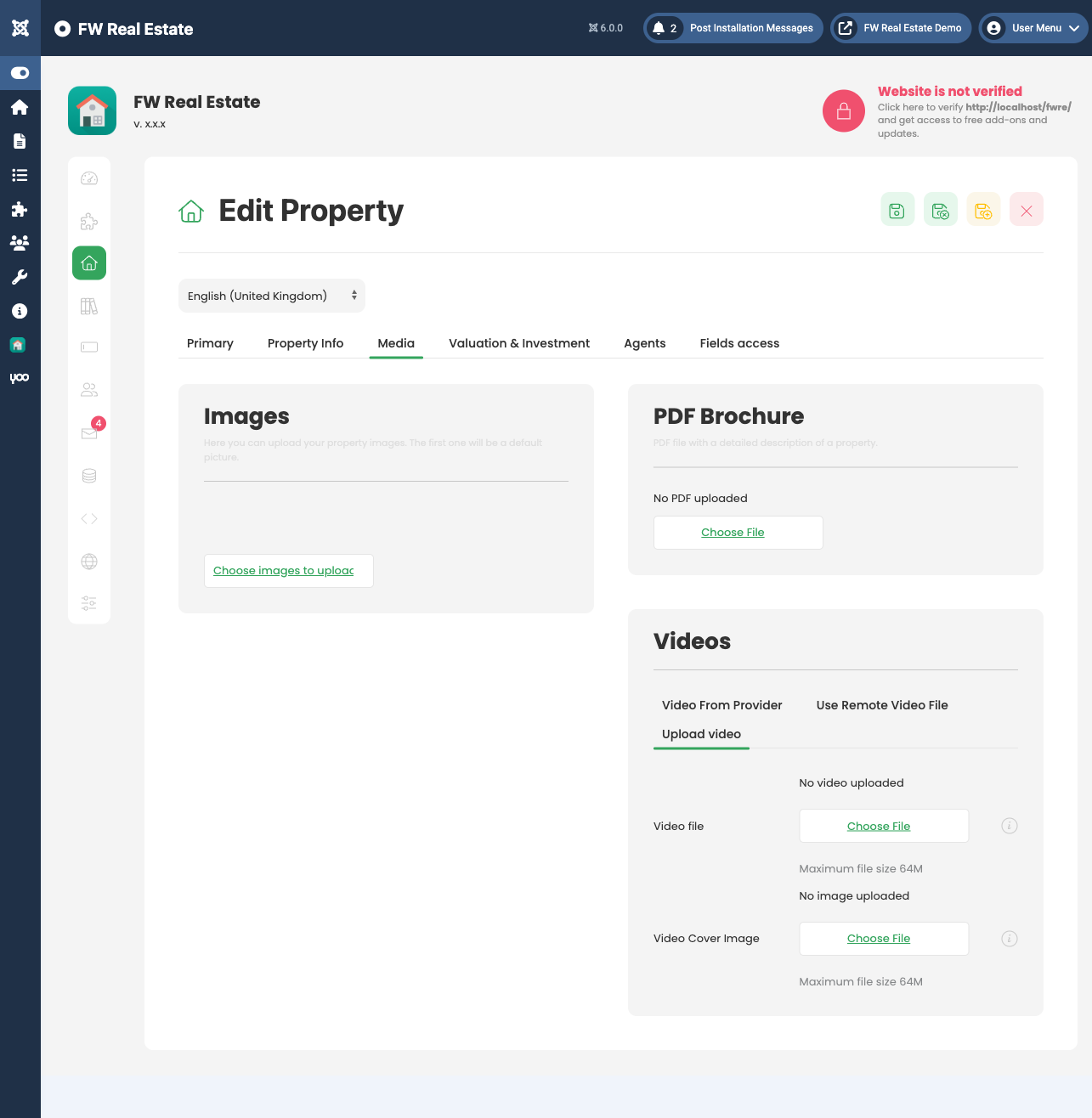
Switch to the Gallery tab to upload photos. Drag and drop image files onto the upload area, or click to browse. Once uploaded, images can be reordered by dragging them into the desired sequence.
Publishing the Listing
Before saving, set Published to Yes on the edit form — this field controls whether the property appears on the frontend. If you save without publishing, the listing will be stored but hidden from visitors. You can also toggle published status at any time from the Properties list without reopening the form.
When ready, click Save or Save & Close in the toolbar.
Planning Your Dictionaries
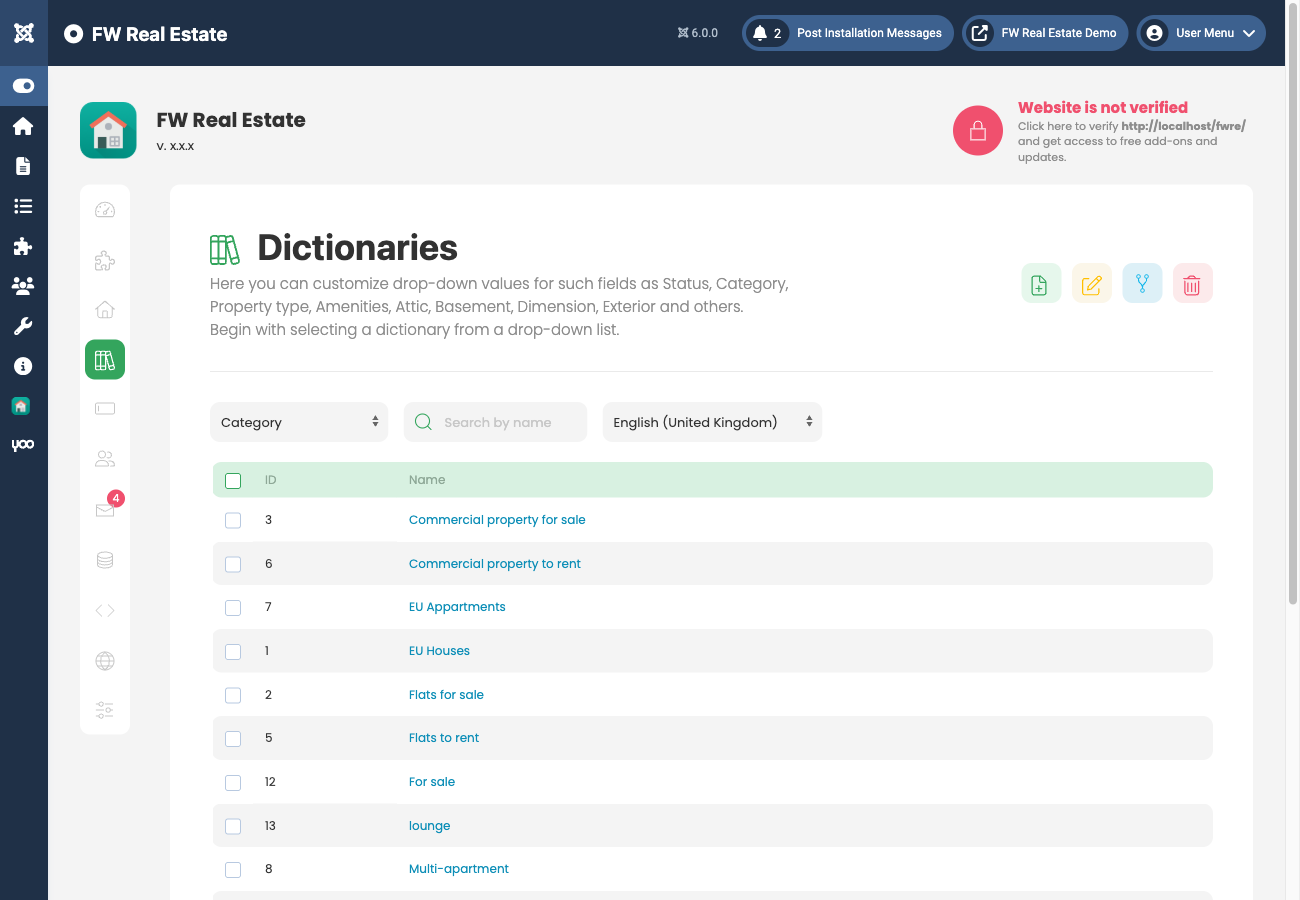
Dropdown values for types, categories, statuses, and locations come from FW Real Estate → Dictionaries. You do not need to pre-populate these before creating your first listing — values can be added on the fly directly from the property form. However, planning your dictionary structure in advance keeps your data consistent as your listing volume grows.
Additional Fields Added by Plugins
Depending on which plugins are active, the property form may include extra tabs and fields:
- Map View plugin — coordinate picker on the Location tab
- Agents plugin — agent assignment field
- Status Labels plugin — status badge field
- Featured plugin — featured toggle
- Video plugin — Videos section on the Media tab
- 3D Tour plugin — panorama URL on the Media tab
- Floor Plans plugin — Floor Plans tab
- Open House plugin — Open House tab
- Brochure plugin — brochure template on the Media tab
- Extra Fields plugin — amenities checklist and room sizes
- Custom Fields plugin — fully custom fields
For a complete reference of all available fields and tabs, see the Property Fields Reference section.

