 FW Food Menu – Documentation
Managing Menu Items
Managing Menu Items
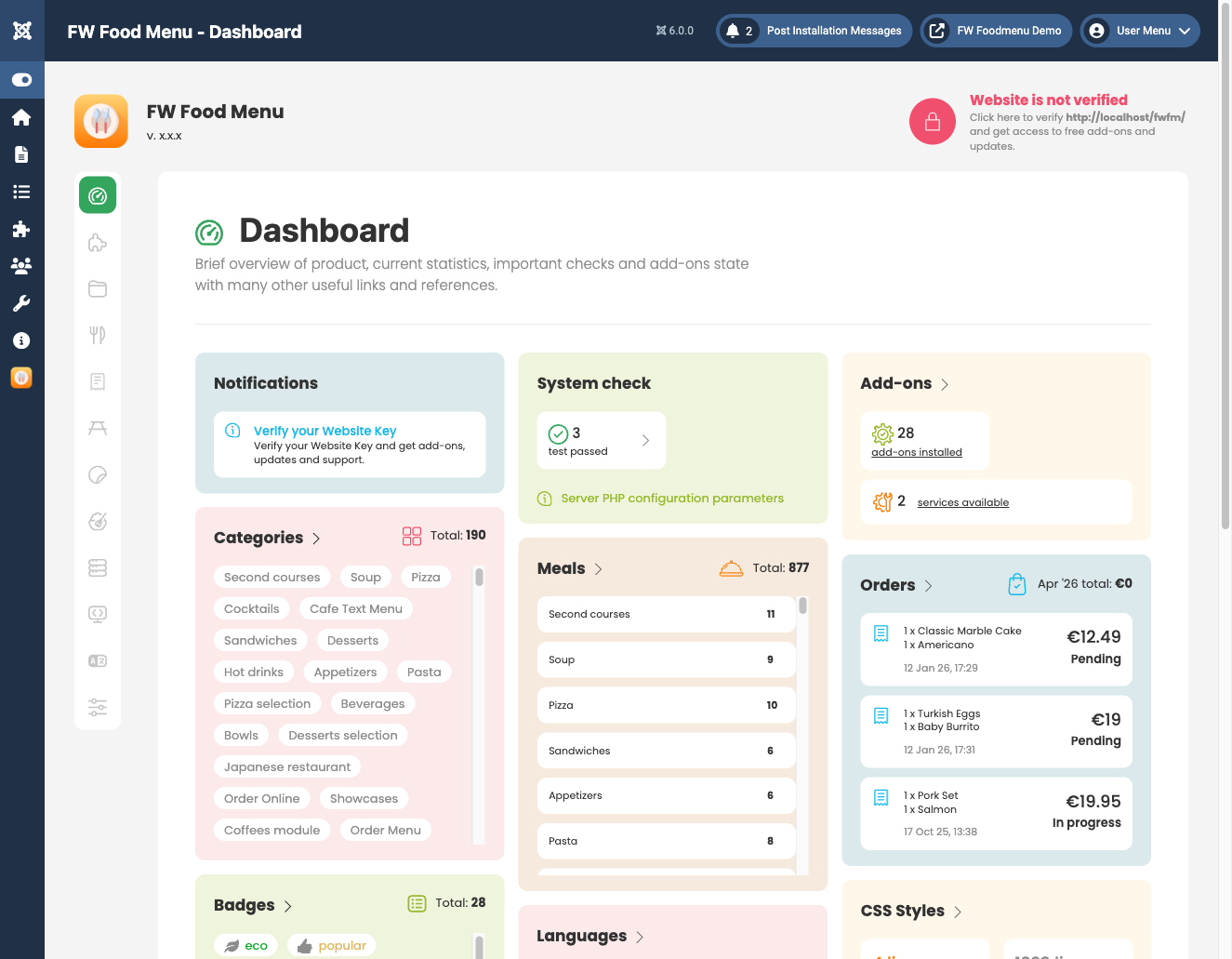
Menu items represent the individual meals and drinks displayed on your food menu. Go to FW Food Menu → Menu Items in the Joomla administrator to add, edit, delete, publish, or unpublish items.
Adding or Editing a Menu Item
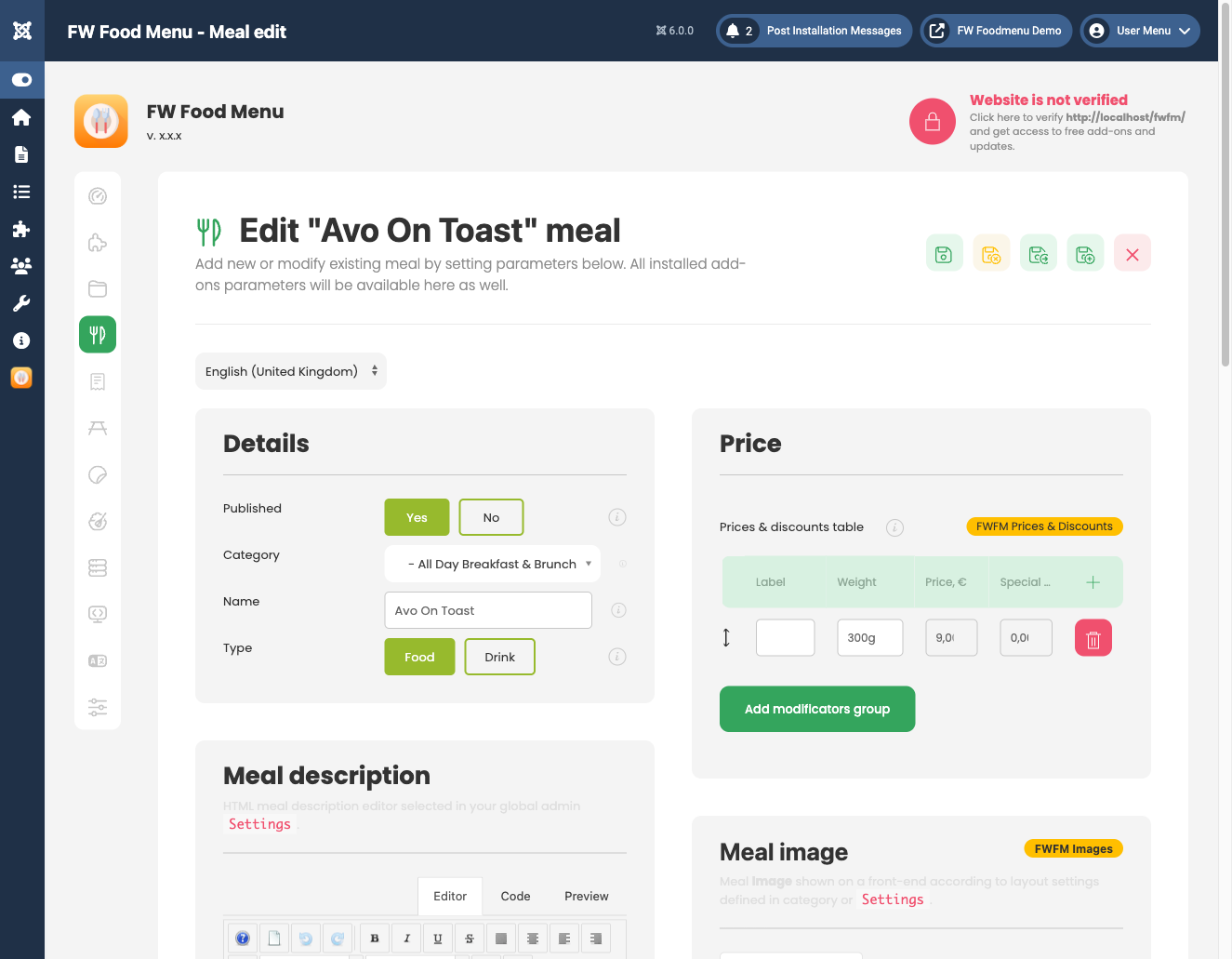
Click New to create an item, or click an existing item's title to edit it. The edit form contains the following standard fields:
- Title — The meal or drink name displayed on the menu.
- Alias — The URL slug used on single-item pages. Generated automatically from the title, but can be edited manually.
- Category — Assigns the item to a parent category. Items appear under this category in the frontend menu.
- Price — The base numeric price for the item.
- Short description — Brief text shown on listing cards in the menu view.
- Description — Full HTML content edited with a WYSIWYG editor, shown on the item's detail page.
- Status — Set to Published or Unpublished to control frontend visibility.
- Ordering — Controls the item's position within its category. Use drag-to-sort in the items list.
Plugin-Extended Fields
Additional fields appear in the edit form when the corresponding addon is installed and enabled. Each addon must be active in both the Joomla Plugin Manager and under FW Food Menu → Addons.
- Images — Upload one or more item photos (requires Image plugin).
- Nutritional information — Calories, protein, fat, and carbohydrates per serving (requires Calories plugin).
- Ingredients and allergens — Tag items with ingredient details and allergen warnings (requires Ingredients plugin).
- Price modifiers — Add size, topping, or other selectable options that adjust the base price (requires Prices plugin).
- Meal badges — Assign visual labels such as "New", "Hot", or "Vegan" (requires Meal Badges plugin).
- Time availability — Restrict when an item is visible or orderable by time of day (requires Time plugin).
Reordering Items
In the Menu Items list, items are grouped by category. Drag the order handle on any row to reposition an item within its category. The updated order saves automatically and is reflected on the frontend immediately.
Publishing and Unpublishing
Click the status icon in the list view to toggle an item between Published and Unpublished without opening the edit form. Unpublished items are hidden from all frontend menu views but remain in the database.

