 FW Gallery – Documentation
Uploading Images
Uploading Images
Images are added individually through the Files section of the FW Gallery admin panel, or in bulk using the Import plugin for batch uploads.
Adding a Single Image
Navigate to FW Gallery → Files and click New to open the file edit form.
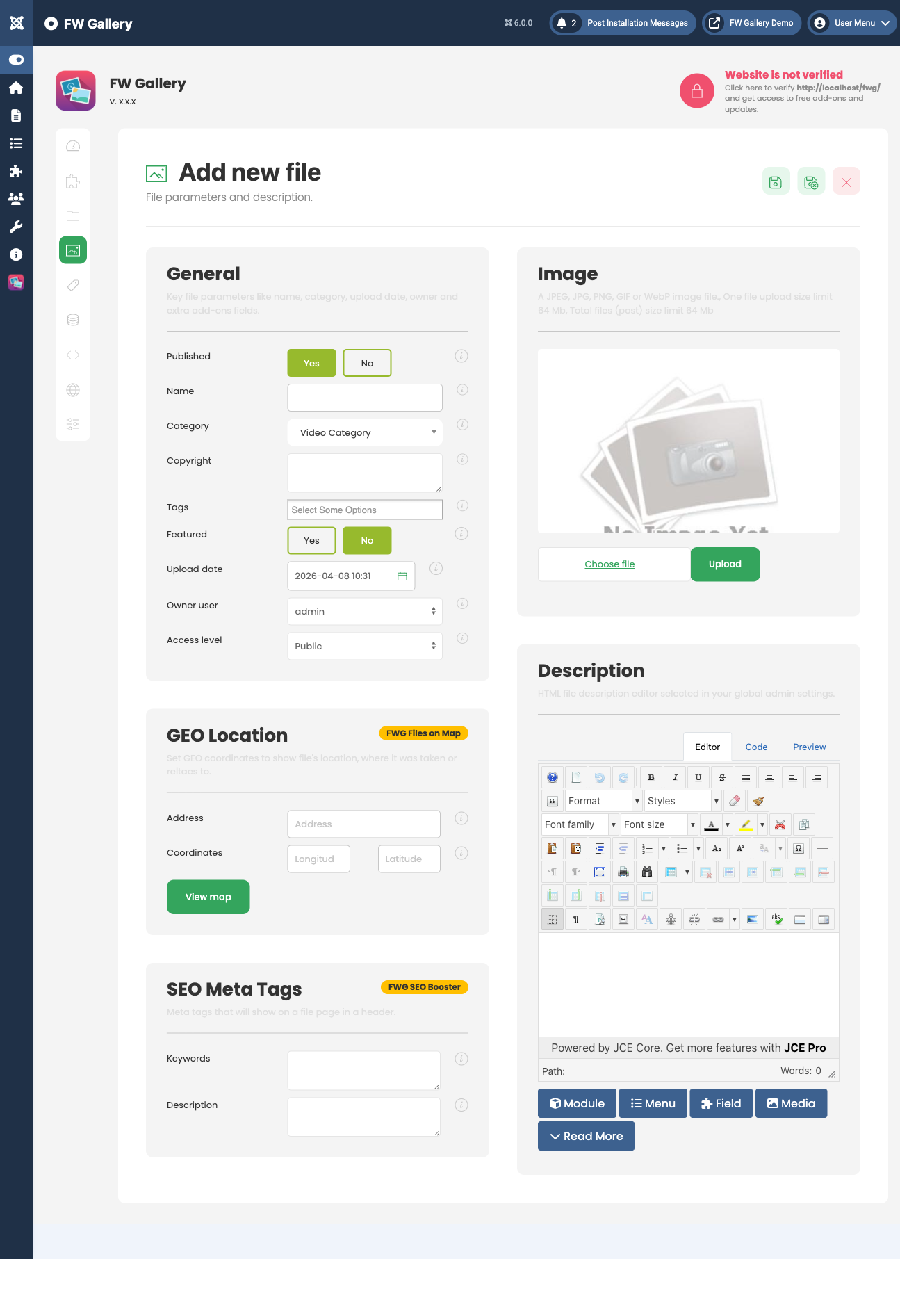
Fill in the following fields:
- Title — The name displayed to visitors on the gallery grid and file detail page.
- Image / Media — Click the upload control to select an image from your computer. Images larger than the configured maximum dimensions are resized automatically on upload.
- Category (Gallery) — Select which gallery this file belongs to. This field is required for the image to appear in a gallery on the frontend.
- Description — Optional. Use the WYSIWYG editor to add a full HTML description shown on the file detail page.
- Tags — Optional. Enter comma-separated tags to make the file discoverable by tag. Requires the Tags plugin to be active.
- Date — The publication or creation date associated with the file.
- Author — The file author's name.
- Published — Controls whether the file is visible on the frontend.
When you are ready, click Save or Save & Close in the toolbar. The image is processed and resized according to the dimensions set in FW Gallery → Settings → General (thumbnail size, lightbox size, and so on). Changing those size settings later does not reprocess already-uploaded images.
Batch Uploading Images
To upload multiple images at once, use the Import plugin. When the Import plugin is active, a batch upload option becomes available under FW Gallery → Data. This lets you select and upload several files in a single operation rather than creating each file record individually.
Key Points
- Every file must be assigned to a Category (Gallery) before it will appear on the frontend.
- The Alias field is auto-generated from the title — edit it manually if you need a specific URL slug.
- Use the Featured toggle to highlight specific images (requires the Featured plugin).
- The Ordering field controls the manual sort position of the file within its gallery when manual ordering is selected as the default sort order.
- Images are resized on upload. If you adjust the image size settings in Settings → General after uploading, existing images are not affected.

