Creating Your First Gallery
Creating Your First Gallery
Setting up a gallery in FW Gallery takes two steps: create a category (gallery) in the admin panel, then display it on your site using a menu item.
Step 1: Create a Category
Navigate to FW Gallery → Categories in the Joomla administrator menu, then click New.
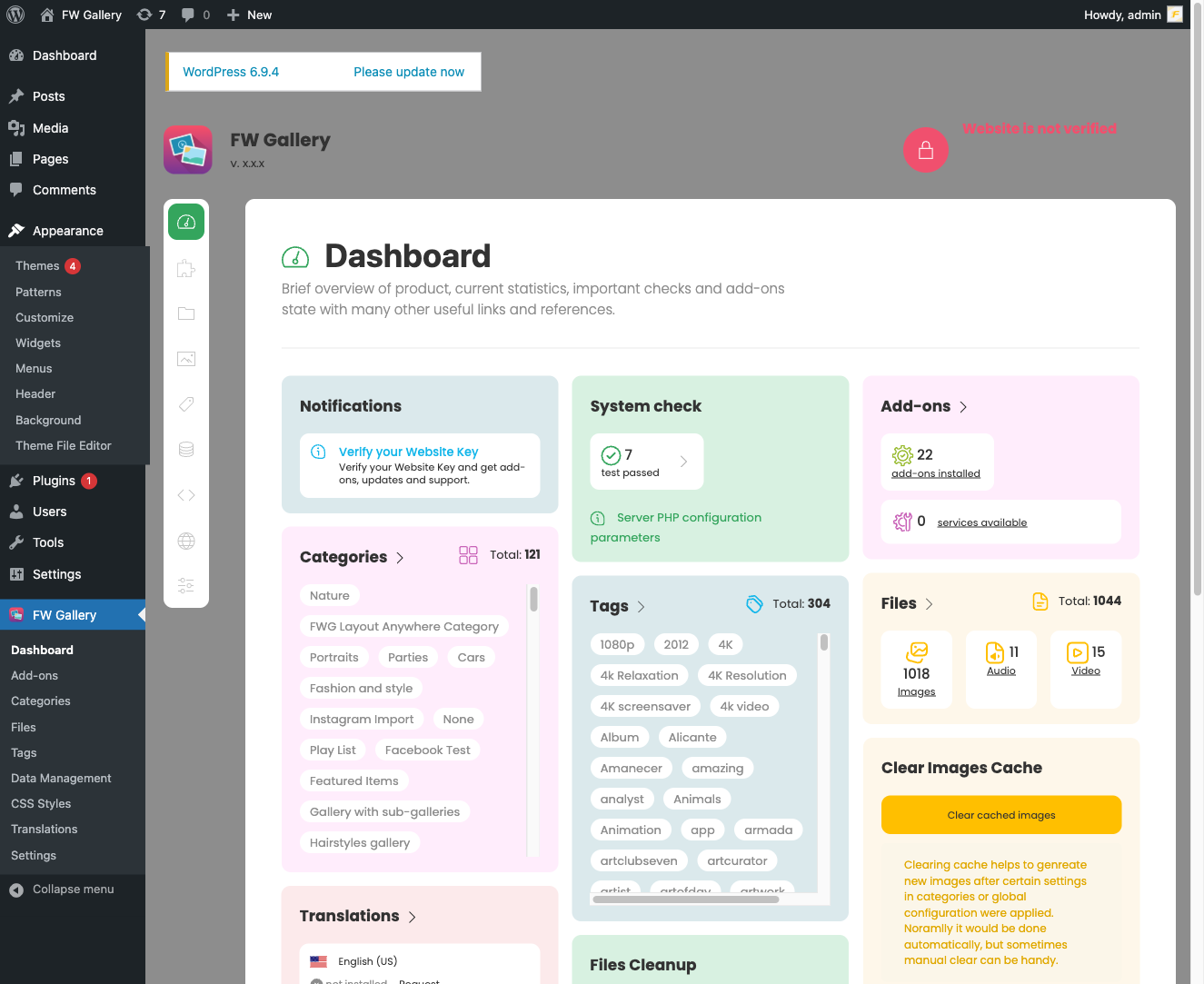
Fill in the following fields:
- Title — The gallery name shown to visitors. This is the only required field.
- Alias — The URL slug. Leave blank to auto-generate from the title.
- Parent — Assign a parent gallery if this is a nested (sub) gallery. Leave empty for a top-level gallery.
- Description — Optional HTML description displayed on the gallery page.
- Cover image — Optional representative image shown on gallery listing cards.
- Layout — Override the default design template for this specific gallery. Leave blank to use the global default.
- Published — Set to Yes to make the gallery visible on the frontend.
When you are done, click Save or Save & Close. Note the category ID assigned to your new gallery — you will need it in the next step. The ID appears in the URL when you open the category for editing (for example, …&id=3).
Step 2: Display the Gallery on Your Site
To show a gallery on a Joomla page, create a menu item that points to it. Go to Menus in the Joomla administrator, open the relevant menu, and click New. Click Select next to the Menu Item Type field.

Choose FW Gallery → Gallery from the list. This menu item type displays the files within a single category. Set the Category field to the gallery you just created, give the menu item a title, then save.
Visit the menu item URL on your site to confirm the gallery appears. Because no files have been added yet, it will be empty — proceed to FW Gallery → Files → New to upload your first images and assign them to this gallery.
Key Points
- Galleries are hierarchical. You can nest subcategories inside a parent gallery to any depth — subcategories are displayed within their parent gallery page automatically.
- The Cover image dimensions are controlled globally under FW Gallery → Settings → General (Cover image size). Changing that setting does not resize images that are already uploaded.
- A gallery's Layout field lets you override the global design template on a per-gallery basis, useful when different galleries need different visual styles.
- Unpublished galleries are hidden from the frontend but remain accessible in the admin panel for editing.

